Default report settings
Use Default report settings to standardize how generated reports appear across your organization.
From Control panel, select Settings, then open Default report settings.
Configure Report Defaults
-
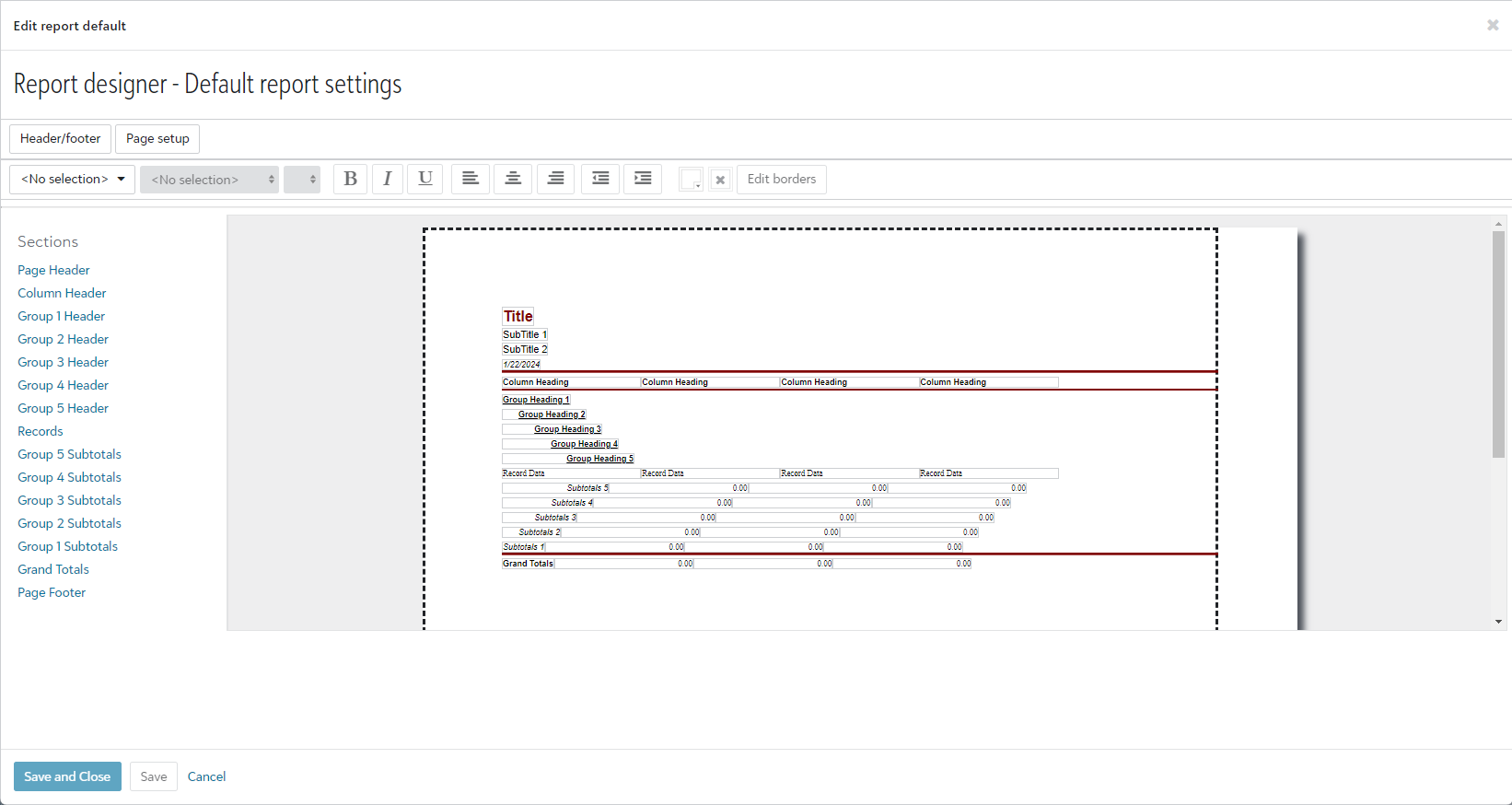
Select Report defaults to open the Edit report default page.
-
Use Header/footer to configure titles and footer text, dates, and page numbers.
-
Use Page setup to set paper layout and margins.
-
Select <No selection> to update individual report elements such as font size and font color.
-
Select Save to apply your changes.
Tip: Selecting an item in the Sections column highlights the affected area in the Report designer section map, which helps you confirm exactly what part of the report you are editing.
To apply these defaults during report generation, continue to Report manager. For broader settings context, see Settings.