Create New Routes
A route, or rule, is used to define the conditions to be met in order to move an application to a specific workflow level. A single assignment can have multiple rules included. Likewise, a single workflow level can have multiple assignments defined as needed.
Note: Routes are similar to the assignment rules used for applications when they are first submitted.
 About rules
Rules are used to define the route. Based on your selection, submissions will be routed to the workflow level specified when any or all conditions of the rules created have been met.
Rules are created by choosing the category (i.e., Application, Applicant, Budget, Organization, Employee) or form, the field to be used, and the value or condition to be applied.
Set up routes
Tip: Examples of common configurations for this routing method can be found here.
-
Navigate to the Program Setup > Workflow Level Automation area.
-
Select the Routing tab and then the Create routing rules button.
Tip: A new route can also be created by selecting Copy from another item’s options on the Workflow Level Automation page. This will duplicate the item and allow any changes to be made.
Tip: Steps for creating assignment rules to route applications based on a Grant Reviewer's Decision can be found here.
-
On the Create Routing Rules page, provide the following information.
-
Provide a name.
-
Include a description if desired.
-
Specify the workflow in the I want submissions in this workflow field.
-
Select the form in the and using this default form field.
-
Select the level in the to route to this level or sub-level field.
-
Select the Add a rule button to begin adding rules to this route.
Tip: When rules are used to evaluate an application, the first rule that is true in the sequence is the one that will assign the application.
-
After being saved, the route will appear in the Program Setup > Workflow Level Automation > Routing tab.
Tip: All Applicant forms in the workflow level - except for manual forms that have not been sent - are required to be submitted for applications to be automatically routed.
Note: By default, a new route will show a Status of Inactive until it is manually activated. Learn more.
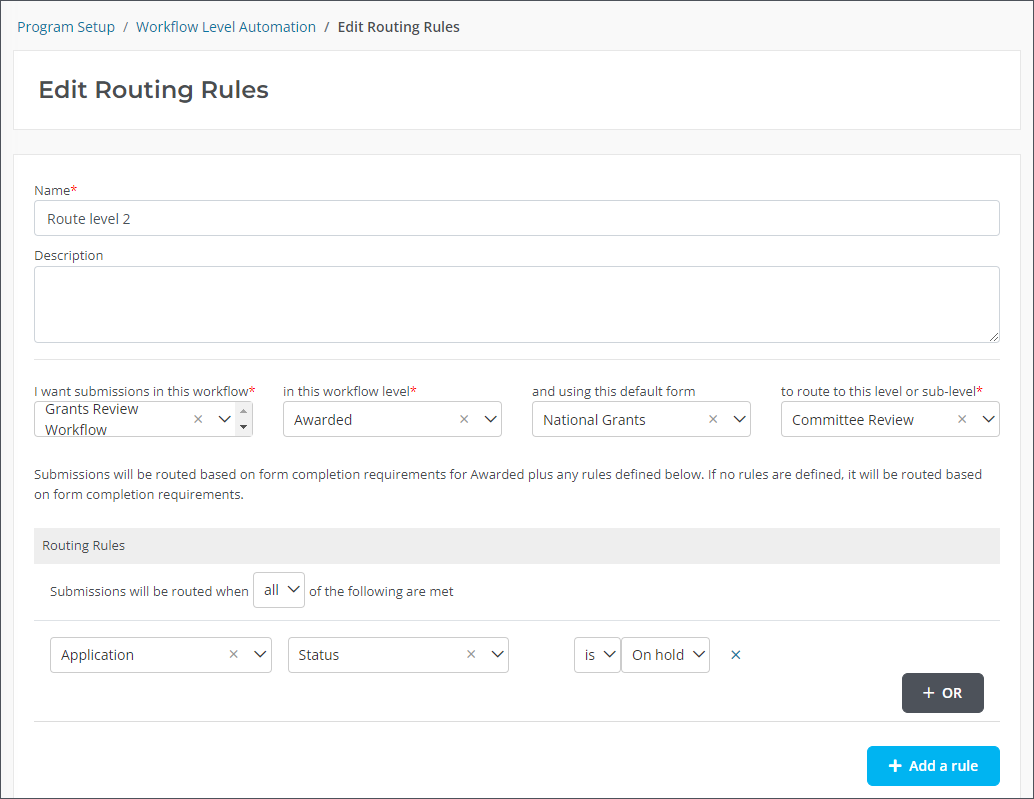
Example of routing rules
In the example below, applications in the Awarded level of the Grants Review Workflow workflow that are using the National Grants form will be routed to the Committee Review level if their Status is On hold.