Tutorial: Connect Optimized Donation Forms to TeamRaiser
Connect an optimized donation form to a TeamRaiser event to extend the optimized form's streamlined checkout to your peer-to-peer events. When a donor gives from an event page, a team page, or a participant's personal page, the donation window shows the event they're donating to, along with the team or the participant they support, and the gift credits the correct event, team, and participant.
Before You Begin
You can set up the form and the event in either order, but to connect them you need both:
-
A TeamRaiser event available to link to your optimized form. You can also create the optimized form while you create the event. For more information, see Link the Form to Your TeamRaiser Event.
-
Know which Blackbaud Integrated Payments (BBIP) merchant account to use with this form. If your organization has several merchant accounts, confirm which one receives the funds for this event before you select it under Payment and fees.
Turn On TeamRaiser Integration in the Optimized Form
-
In Luminate Online, select Fundraising, and then Donation Management.
-
Select All Donation Forms, and then select Create a donation form.
-
Select Optimized form, enter an internal Form name, and select a Donation campaign. For the full form setup, learn how to create an optimized donation form.
-
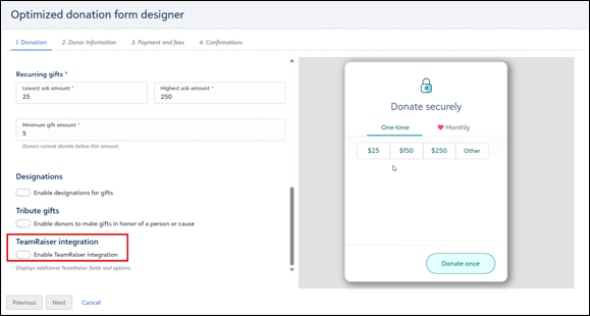
Under Donation, scroll past Tribute gifts to TeamRaiser integration, and turn on Enable TeamRaiser integration.
-
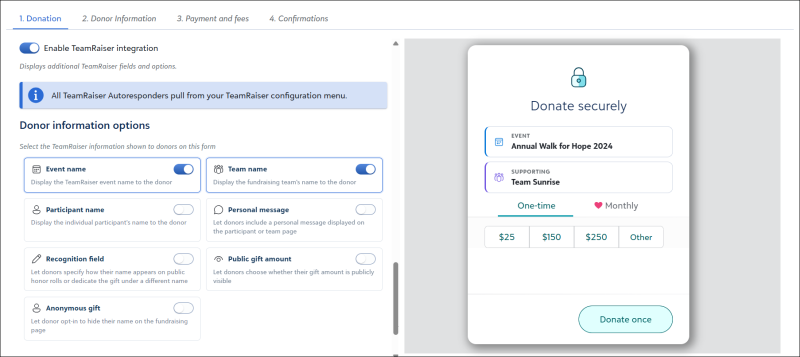
Turn on the options you want donors to see in the checkout.
TeamRaiser Displays
-
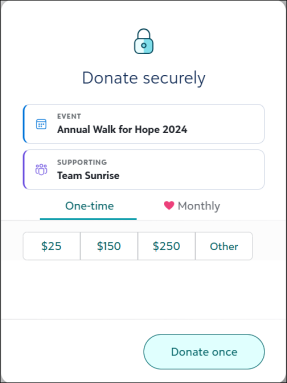
Event name: Display the event name in an Event tile at the top of the donation window, for example, Annual Walk for Hope.
-
Team name: Display the team name in a Supporting tile under the event, for example, Team Sunrise, when the donor gives from a team page.
-
Participant name: Display the participant's name in the Supporting tile when the donor gives from a participant's personal page.
What the donation window shows depends on where the donor reaches it from. The Supporting tile shows either a team or a participant, not both:
-
From a team page, the window shows the event name and the team name.
-
From a participant's personal page, the window shows the event name and the participant's name.
-
From the event page, the window shows only the event name.
The live preview updates as you turn each option on, so you can check the donation window before you publish.
Donor Privacy and Recognition Options
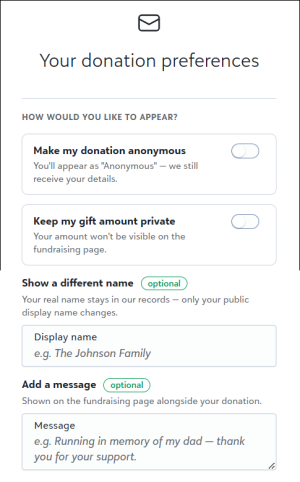
Turn on any of the following options to add a Your donation preferences screen to the donation window.
-
Personal message: Add an Add a message option so donors can leave a message with their gift. The message appears on the team page or the participant's personal page, depending on where the donor gave from.
-
Recognition field: Add a Show a different name option so donors can choose the name that appears on the honor roll, such as a family or company name.
-
Public gift amount: Add a Keep my gift amount private option so donors can hide their amount from public view. The gift still counts toward the event goal.
-
Anonymous gift: Add a Make my donation anonymous option so the donor's name appears as Anonymous on the team page and personal page. Your organization still sees the donor's actual name and details.
-
Under Associated TeamRaisers, select Show associated TeamRaisers to review the events linked to this form.
Note: A new form displays Not associated with any TeamRaiser currently. Events appear here after you select the form in the TeamRaiser event settings.
-
(Optional) Under Monthly giving, select Suppress Monthly Giving if your event is time-bound, such as a walk or a ride, and you want to accept one-time gifts only.
-
Select Next to continue through Donor information, Payment and fees, and Confirmations, and then publish the form.
Link the Form to Your TeamRaiser Event
You link an optimized form to an event from the TeamRaiser side, not from the form. There are three ways, depending on whether the event and the form already exist.
Create the Form While You Create the Event
The quickest path. When you create a new TeamRaiser event, you can have Luminate Online create an optimized form for it at the same time.
-
Select Fundraising, TeamRaiser, and then Create a TeamRaiser.
-
Under Donation Form Association, select Create a new optimized donation form for this TeamRaiser, and finish creating the event.

Luminate Online creates an optimized form with default settings and a default branding card, and links it to the event. You can find the new form under All Donation Forms, with the same name as the TeamRaiser event. You're already several steps ahead: the form, the link, and the branding card exist. To tailor the form, open it from All Donation Forms, select Edit, and work through the TeamRaiser options in Turn On TeamRaiser Integration in the Optimized Form.
Select an Existing Form While You Create the Event
-
Select Fundraising, TeamRaiser, and then Create a TeamRaiser.
-
Under Donation Form Association, select Assign an existing donation form to this TeamRaiser.
-
Under Donation Form Name, open the list, select the Optimized tab, select your form, and finish creating the event.
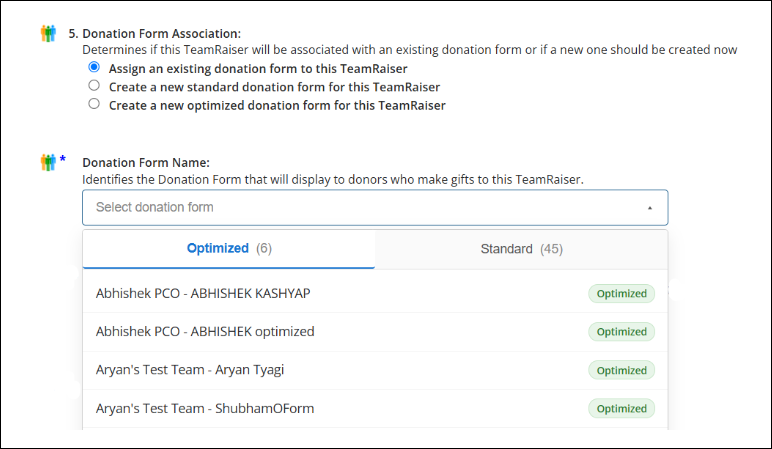
Note: The list separates your forms into Optimized and Standard tabs, with the count of each. Each optimized form also carries an Optimized badge.
Change the Form on an Existing Event
This works the same way as selecting an existing form while you create an event. The difference is that you edit a TeamRaiser event that already exists and replace the form linked to it with any other optimized form.
-
Select Fundraising, and then TeamRaiser.
-
Find your event, select Edit, and open Select Fundraising Options.
-
Open the Donation Form list, select the Optimized tab, and select your form.
-
Select Save, and then publish the TeamRaiser event.
After you link the form to an event, the event's name appears in the optimized form designer under Associated TeamRaisers. To check, open the form from All Donation Forms, select Edit, and on the Donation tab select Show associated TeamRaisers.
What Donors See
When a donor selects Donate on an event page, a team page, or a participant's personal page, the donation window opens. It shows the event name, and the team or the participant that matches the page the donor came from, so donors know who they support before they pay. If you turned on privacy options, donors also see the Your donation preferences screen before they confirm.
How Donor Selections Appear on the TeamRaiser Page
Each choice a donor makes on Your donation preferences changes what the TeamRaiser fundraising page displays:
-
Add a message: The message appears with the donor's gift in the honor roll on the team page or the participant's personal page, whichever the donor gave from.
-
Show a different name: The honor roll lists the gift under the name the donor entered, such as a family or company name, instead of the donor's own name.
-
Keep my gift amount private: The honor roll lists the donor's name without an amount. The gift still counts toward the participant, team, and event totals and the progress meter.
-
Make my donation anonymous: The honor roll lists the gift as Anonymous with the amount, for example, Anonymous, $1,000. The gift still counts toward the totals, and your organization still sees the donor's actual name and details.
A donor can combine these options. For example, an anonymous gift with Keep my gift amount private appears in the honor roll as Anonymous with no amount.
Tip: Use one optimized form for many TeamRaiser events. The window adapts to the event, team, and participant for each page.
For answers to common questions, see TeamRaiser Integration on Optimized Donation Forms: Frequently Asked Questions (FAQ).