Administrator Dashboard
Your administrator dashboard is a customizable PageBuilder page that displays when you login to Luminate Online. Follow the example below to explore PageBuilder components, and then design your own optimized dashboard.
Select your PageBuilder page
Your dashboard configuration is located in the adminhomepage PageBuilder page.
-
Select Content and PageBuilder.
-
Locate adminhomepage in the Page List and select Manage to view your page version list.
-
Preview existing versions to find the one that is most to your desired outcome. Select Copy Version.
-
Enter a version name and page title and select Finish.
Note: At this point you may also enter keywords and meta tags intended for search optimization. These features help constituents find your published pages to advertise events and solicit donations. These are not necessary for a page that only you can access. You may, however, use the Additional Meta Tags field to link files and scripts to your page's HTML if you desire customizations not included in PageBuilder features.
Add content to your admin dashboard
-
Select Next or Select Page Layout & Add Content.
Tip: To return to the page designer, select Edit Content from your page's version list.
-
Select a layout and Add Content to open the page designer.
-
Select the menu and choose a content typet.
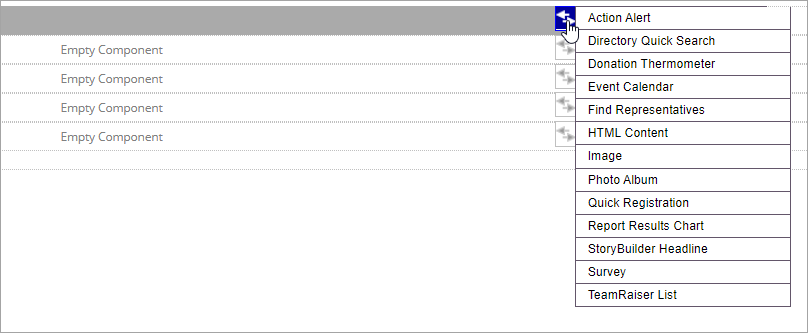
Let's add an events calendar
-
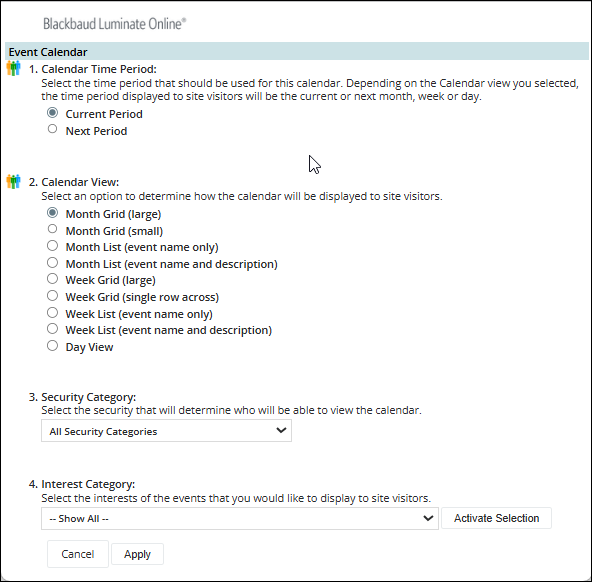
Select events calendar from the content type menu, select your calendar settings and Apply.
-
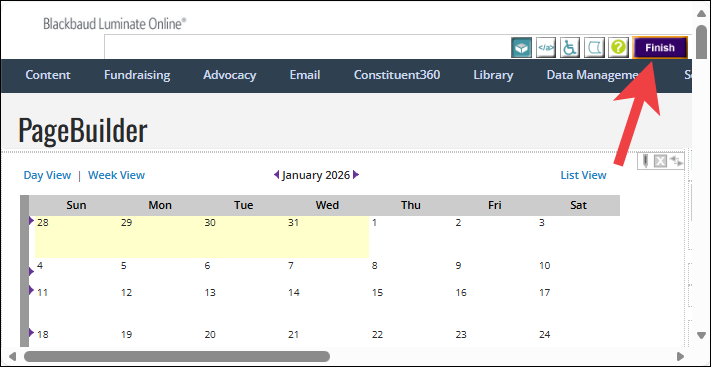
Select Finish.
-
From the page version list, select Preview and explore your interactive calendar.
Edit content in your admin dashboard
-
From your page version list, select Edit Content.
-
Select the edit icon above your content.
-
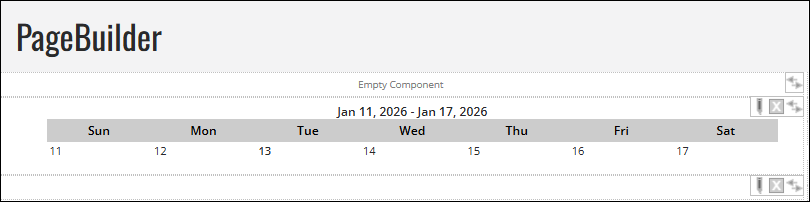
Select the Week Grid (single row across) view and Apply.
Remove content from your dashboard
Select the X above your content.

Explore other content types
Content components include:
-
Action Alert
-
Directory Quick Search
-
Donation Thermometer
-
Events Calendar
-
Find Representatives
-
HTML Content
-
Image (see Image Library)
-
Photo Album
-
Quick Registration
-
Report Results Chart
-
StoryBuilder Headline
-
Survey
-
TeamRaiser List
Interactive report results charts
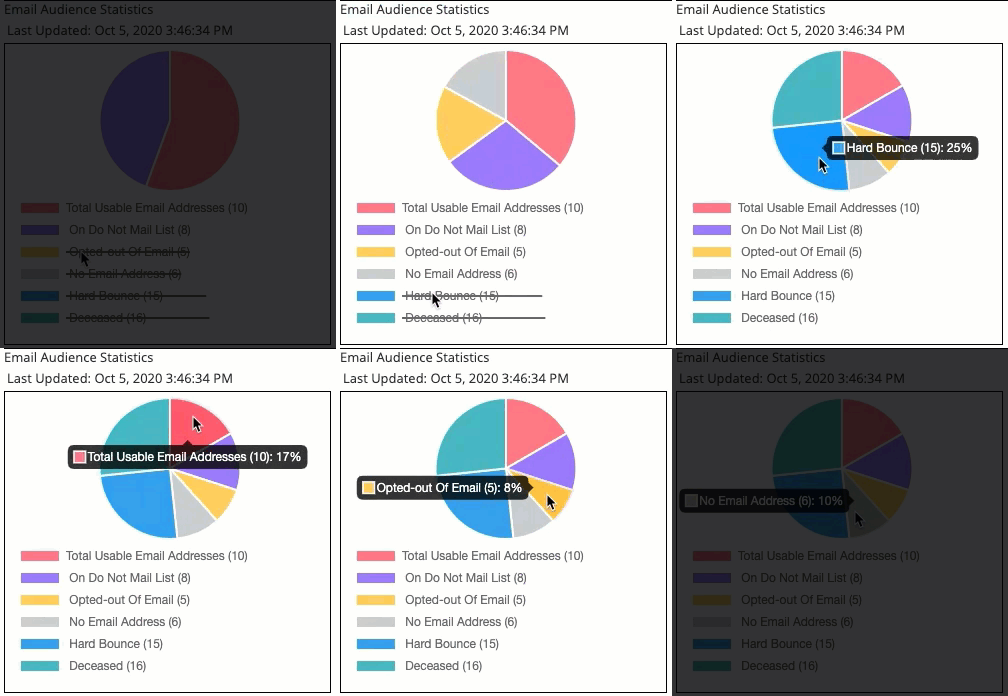
Monitor important data including:
-
Constituent Information Dashboard on the left side of the page that can include:
-
Constituents by Origination Code — Shows the number of constituents registered on your site by registration method (For example, by an administrator, filling out a registration form, or through a constituent upload file)
-
Constituents by Email Status — Shows the number of constituents who will receive site emails versus the number who have opted out of email communications
-
Constituents by Donor Status (if you use Fundraising) — Shows the number of constituents who completed an online donation (or had an administrator record it for them) versus the number who haven't
-
Constituents by Advocacy Status (if you use Advocacy) — Shows the number of constituents that took action on an Action Alert versus the number who haven't
-
Constituents by Cookie Status — Shows the number of constituents who use the Remember Me link versus the number who did not
-
Constituents by Interest Profile Status (if you use defined interest categories and associate them with information) — Shows the number of constituent profiles that are updated with interests versus the number that are not
-
Constituents by Registration Status — Shows the number of constituents who fully registered versus the number whose registrations are pending or incomplete
-
Cumulative User Registrations — Shows the number of constituents who registered each month over a specified time period (by default, 60-90 days ago, 30-60 days ago, and 0-30 days ago)
-
Constituent Activity Dashboard — Shows specific information over a time period (by default, 60-90 days ago, 30-60 days ago, and 0-30 days ago)
-
-
New User Registrations — Shows the number of constituents who registered as new users
-
Tell-A-Friends Sent — Shows the number of times the Tell-A-Friend link was used to send email messages
-
Campaign Page Views — Shows the number of times the donation form was accessed
-
Donations — Shows the number of donations that were made online or recorded by an administrator
-
Event RSVPs — Shows the number of online RSVPs received for all events
-
Ticket Purchases — Shows the number of tickets purchased online for all events
-
Action Alert Responses — Shows the number of action alert responses taken
-
Survey Responses — Shows the number of surveys that were answered
-
Online Donations by Donor Status — Shows donations by first time donors, repeat donors, new constituents, and so on.
-
Story Submissions (if you use StoryBuilder) — Shows the number of news stories that were contributed to your site
-
TeamRaiser Registrations (if you use TeamRaiser) — Shows the number of participants registered for your TeamRaiser events
-
Online Transaction Amount by Transaction Type — Shows the number of each type of online transaction (Donation, eCommerce purchase, TeamRaiser Registration, and so on) processed on your site
-
Cumulative Online Giving (if you use Fundraising) that shows the amount of money your site has raised each month