Brand Voice
Shape how the agent communicates with constituents to reflect your organization's unique communication style. Configure writing guidelines and add voice samples to influence the tone, formality, and language the agent uses when generating content.
To configure your brand voice, select Brand voice from Settings on the Development Agent page where you can control writing guidelines, voice samples, and see a preview of generated content.
Writing guidelines
Writing guidelines define the default writing style the agent uses when generating content. The agent may make small adjustments for individual constituents, but it follows the preferences you set. These settings guide how the agent writes rather than enforcing a specific length, tone, or format.
Select an option for each setting.
-
Length — Controls the amount of detail the agent includes.
-
Concise – Short and direct
-
Neutral – Balanced length
-
Verbose – Longer and more detailed
Note: The Length setting guides phrasing style rather than enforcing a word count, so results vary with your content and other settings. In practice, Concise typically produces a noticeably shorter email while keeping the full message intact. If you want even shorter output, add a note such as "Make this more concise" when you regenerate.
-
-
Warmth — Controls how personal and conversational the tone feels.
-
Professional – Polished and business-like
-
Neutral – Balanced in tone
-
Warm – Friendly and personal
-
-
Formality — Controls the style and structure of language used.
-
Casual – Conversational and relaxed
-
Neutral – Balanced style
-
Formal – Professional and structured
-
-
Urgency — Controls how strongly the agent encourages action.
-
Calm – Reassuring and measured
-
Neutral – Balanced approach
-
Urgent – Action-oriented and timely
-
Words to avoid
Add words or short phrases the agent should avoid in generated content. Each entry can include up to 20 characters. Press enter to save an entry. To remove an entry, select the delete icon on the entry.
Tip: Use this field for excluded words and phrases only—not instructions or preferred wording.
Voice samples
Voice samples help the agent learn how your organization communicates. Add examples that represent your organization's style, tone, and writing preferences. Each entry can include up to 30,000 characters.
For best results:
-
Add one sample per entry. Don't combine multiple samples into a single entry.
-
Select the content type that best describes the sample because it determines how the agent interprets and uses the voice sample. The agent follows Style guideline and Branding instructions entries as writing guidance, and learns tone and communication patterns from Appeal, Newsletter, Thank-you note, and Other entries.
-
Remove date-specific references, deadlines, or urgent calls to action (those belong in Knowledge).
Examples of effective voice samples include donor appeals, thank-you messages, newsletters, and campaign communications without specific dates, deadlines, or URLs.
Add a voice sample
-
Select + New entry.
-
Enter or paste your content.
-
Select the Content type that best matches your content:
-
Appeal — A past appeal letter or email. Remove deadline-specific calls to action or extra formatting.
-
Branding instructions — Preferred messaging, terminology, or communication standards.
-
Newsletter — Newsletter content that reflects your organization’s writing style.
-
Other — Content that doesn't fit another content type.
-
Style guideline — Guidance about tone, voice, formatting, or language preferences.
-
Thank-you note — A stewardship or acknowledgment message.
-
-
Select Done.
To remove a voice sample, select the delete icon next to the entry.
Note: Voice samples teach the agent how your organization communicates. Knowledge gives the agent information about your organization, such as events, programs, and organizational history.
Select Next to go to Preview.
Preview
Preview shows how your brand voice settings affect generated content. Review a side-by-side comparison of a standard example and the same example with your brand voice applied. Because Preview uses a fixed sample paragraph, changes to message length may be minimal even when you select different Length settings.
Use Preview to evaluate tone and style rather than message length. To see a generated example, add at least one voice sample.
Select Finish to save your brand voice configuration.
Manage Voice Samples
After you add a voice sample, select the menu next to an entry to edit it, delete it, or convert it to a Knowledge entry.
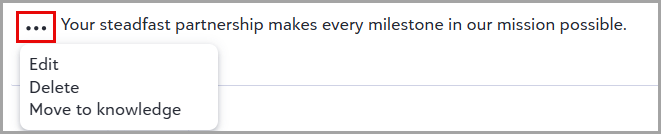
When you Edit or Delete an entry, updates apply to future generated content. Because the agent generates each communication about seven days before its scheduled send date, upcoming communications generated after your update can reflect the change, but content that's already generated and scheduled may not automatically update.
If brand voice entries contain factual information about your organization rather than examples of your writing style, select the menu next to the entry and select Move to knowledge. This moves the entry out of Brand voice and into Knowledge. After you convert an entry, review it in Knowledge and add details such as content type, valid dates, additional context, reviewer, and review frequency. If the same content should remain in Brand voice and also be available in Knowledge, copy the content first, then create a new Knowledge entry instead of converting the original.