FAQ for Livestream Fundraising
 What platforms can I stream on?
Our widgets and overlays work with any streaming software. Popular options include Twitch, Facebook Gaming, and YouTube Live, but you can use any streaming software.
How do I add a Donate button to my livestream?
To display a Donate button instead of a donation link URL, create an image for the Donate button, then add a hyperlink to the image. Use your broadcast software to add the image to your donation page.
See Donation link.
How do I add a progress bar to my livestream?
First, customize your progress bar, then use your broadcast software to add the overlay to your livestream. The progress bar tracks the amount you've raised toward the goal that's defined in your JustGiving goal.
See Progress bar.
Why does my progress bar show a goal of $0?
Your goal amount is set in your JustGiving fundraising or crowdfunding page.
If your progress bar shows a goal of $0, open your JustGiving page and set a goal. The goal amount will sync to your widget.
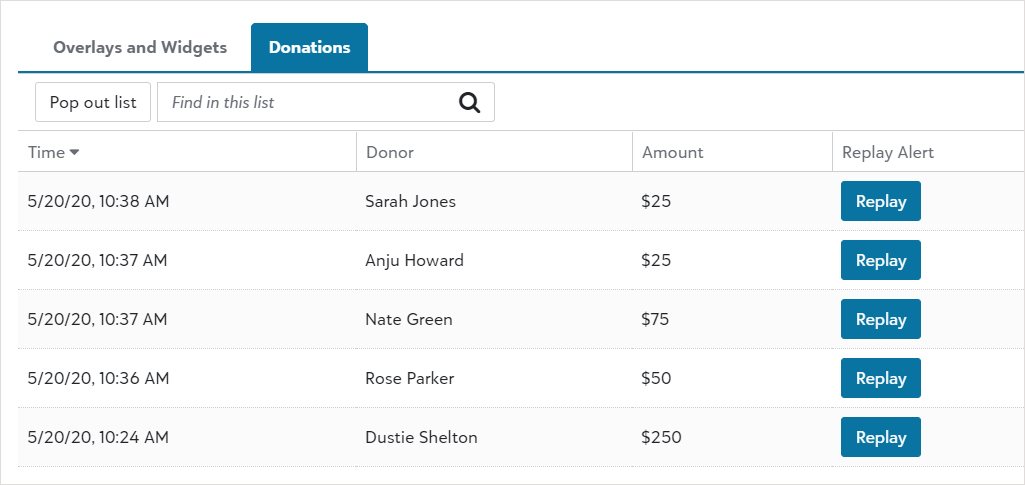
How do I replay a donation notification to celebrate a specific donation?
Select the Donations tab, find the donation you want to replay, then click Replay to launch the alert during your livestream.
Why is my audio or image not working on my alert box?
When donations come in, you can set sounds and images to accompany the donation notification on the screen.
If the sounds or images aren't working, verify that the audio file and image file are linked to from a secure, publicly available source. Local files are not considered publicly available.
See Alert box
Why do I see an error that something went wrong on my overlay and widget configuration screen?
A known issue prevents some content from loading properly when browser settings don't allow cookies. We're working to resolve this issue. For now, configure your browser to allow cookies, and for incognito or private mode use, do not enable the option to "block 3rd-party cookies" in those modes.
Why do the Livestream tools require 3rd-party cookies?
Livestream tools display in an iframe that requires 3rd-party cookies in your browser. To access the tools, enable 3rd-party cookies in your browser.
Google Chrome
Select the three-dot menu in the upper-right of the browser bar, and select Settings.
Select Privacy and security.
Select Cookies and other site data.
Select the option to Allow all cookies.
For more help, see Google Chrome.
Microsoft Edge (Chromium-based)
Select the three-dot menu in the upper-right of the browser bar, and select Settings.
Select Site permissions, then Cookies and site data.
Turn off the toggle for Block third-party cookies.
For more help, see Microsoft Edge.
Mozilla Firefox
Select the three-line menu in the upper-right of the browser bar, and select Options.
On the left, select Privacy & Security.
In the Enhanced Tracking Protection section, select Standard.
For more help, see Mozilla Firefox.
Apple Safari
Select Safari, Preferences.
Select Privacy.
In the Cookies and website data section, clear the Block all cookies option.
For more help, see Apple Safari.
Tip: Some browsers allow you to enable "some" cookies, which may or may not allow the iframe to display.