Copy and Paste Layout Components
Copy and paste layout components to reuse a configured structure without rebuilding it. This helps maintain consistency across pages and reduces form design time.
Note: You can paste a copied component on the same page or on another page in the same form. The original component remains unchanged.
For a complete layout-management workflow, see Add and Manage Layout Components. If you want to move a component instead of duplicating it, use Cut and Paste Layout Components.
-
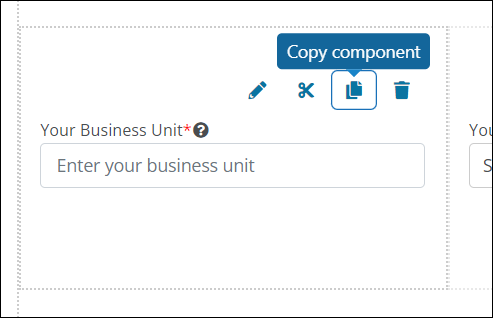
Hover over the component on the form page.
-
Select the Copy component icon from the toolbar that appears.
-
Navigate to the layout component or field that should appear after the copied component.
-
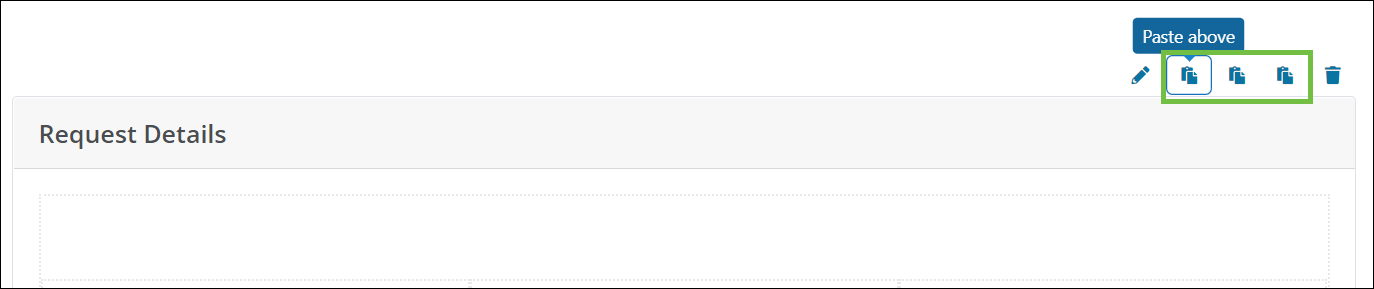
Select one of the following options from the toolbar that appears above the selected component.
-
Paste above - Paste the copied component directly above the selected component or field.
-
Paste below - Paste the copied component directly below the selected component or field.
-
Paste inside container - Paste the copied component inside the selected layout container.
Note: This option only appears for components that act as a container, such as wells and columns.
-
After the component is pasted, you can reposition it as needed using Move Layout Components.