Cut and Paste Layout Components
Cut and paste layout components to move configured content without rebuilding it. This approach helps you reorganize forms quickly while preserving component setup.
Use this workflow when a component should be relocated, not duplicated. If you want to keep the original and create a duplicate, use Copy and Paste Layout Components. For broader guidance, see Add and Manage Layout Components.
-
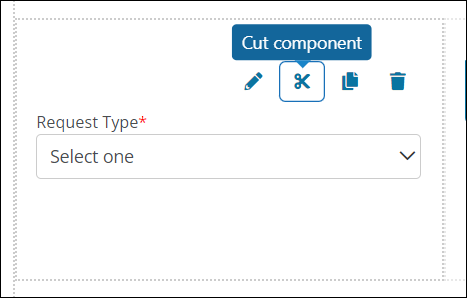
Hover over the component on the form page.
-
Select the Cut component icon from the toolbar that appears.
-
Navigate to the layout component or field that should appear after the moved component.
-
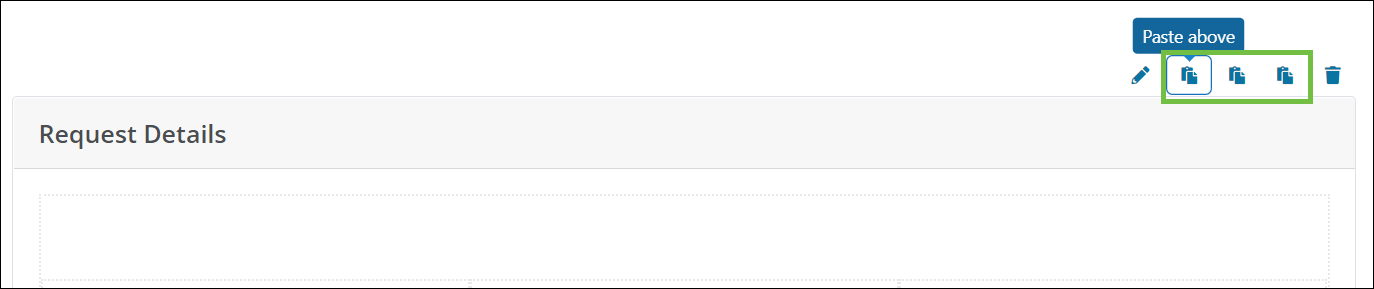
Select one of the following options from the toolbar that appears above the selected component.
-
Paste above - Move the component directly above the selected component or field.
-
Paste below - Move the component directly below the selected component or field.
-
Paste inside container - Move the component inside the selected layout container.
Note: This option only appears for components that act as a container, such as wells and columns.
-
Tip: If you need to place a custom data table field inside a column or panel, cut and paste the field into the layout component instead of using drag and drop.
To reposition the moved component again within the same page, follow Move Layout Components.