Require Electronic Signatures on Forms
Require electronic signatures when your process needs a formal sign-off before an application can be submitted or reviewed. This setting improves accountability and provides auditable signature data.
Use About electronic signatures to review behavior and rules, Enable the signature requirement option to configure the setting, Update and manage your signature to maintain signer details, and Generate reports for applied signatures for audit reporting.
Tip: For the applicant-side workflow, see Applicants Sign Applications.
About electronic signatures
When a form requires a signature, users see Sign and submit instead of Submit. The applicant or reviewer must sign electronically before submission is complete and workflow status can advance.
Signature behavior follows these rules:
-
You cannot enable signatures on Eligibility forms. The option is available for other form types.
-
Any applicant who can submit the form can sign and submit the application.
-
Only one applicant signature is permitted.
-
If a revision is requested, the applicant must sign again to submit their revision.
-
If a form revision request is canceled, the original applicant signature will be used instead of requiring a new signature to sign off.
-
If a Grant Manager edits or submits on behalf of an applicant, the Grant Manager signs with their own name. The system stores signer metadata, including Signer name, Email, Date/Time, IP address, and Signed in WFL, for Ad Hoc reporting. The Grant Manager signature image itself is not stored.
-
When a Grant Manager signs an application on behalf of an applicant, the system will capture the same details as when bypassing a signature so that it will be reflected in the audit trail.
-
For Grant Manager forms that require signatures, each Grant Manager or Reviewer must sign during review.
Enable the signature requirement option
You can require signatures when creating a form or after publication.
-
For new forms: In Create Custom Form, select Require signature when submitting form. See Create New Forms.
-
For draft and published forms: Update form details and select Require signature when submitting form. See Update Form Details.
After enabling this option, customize the signer prompt in Signature description so applicants and reviewers understand what they are signing.
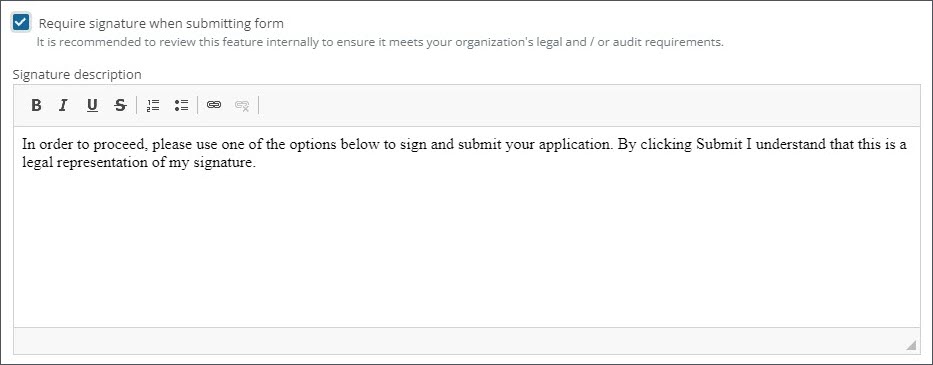
Note: This option can be disabled at any time by deselecting it in Edit Mode. If it is disabled in a Published form, existing signature data will still be available for reporting.
Update and manage your signature
Your signature is saved to your account after you sign electronically. Grant Managers and Reviewers can update it during the next signing event or directly from account settings.
-
Navigate to My Account in the Grant Manager Portal.
-
Under Electronic Signature, select Update signature.
-
In the Update Signature screen, provide a new signature using Type, Upload, or Draw.
Note: When uploading an image of your signature, the following file types are accepted:
WEBP,TIF,TIFF,SVG,BMP,GIF,JPG,JPEG, andPNG. -
Save your changes.
Generate reports for applied signatures
GrantsConnect tracks the following signature data:
-
Signed date
-
Signed date month
-
Signed date year
-
Signed by name
-
Signed by email
-
Signed in workflow level name
-
Signed in workflow level ID
-
Signed IP Address
When you download a signed form from Applications > Forms, the applied signature is included. You can also include this data in an Ad Hoc custom forms report for audit and compliance reporting.