Create New Forms
Create a custom form when you need a tailored experience for applicants, reviewers, or grant managers. In Custom Forms, you define the form name, type, language, and optional settings before you decide whether to continue building in the form editor or with quick add.
If you are planning the form structure first, review About Form Types to choose the correct audience and workflow. If you want to start from a reusable foundation, Create New Forms From Standard Product Templates explains how to begin with a template instead of a blank form.
Create a form
-
Go to the Custom Forms area.
-
On the Forms tab, select Create custom form.
-
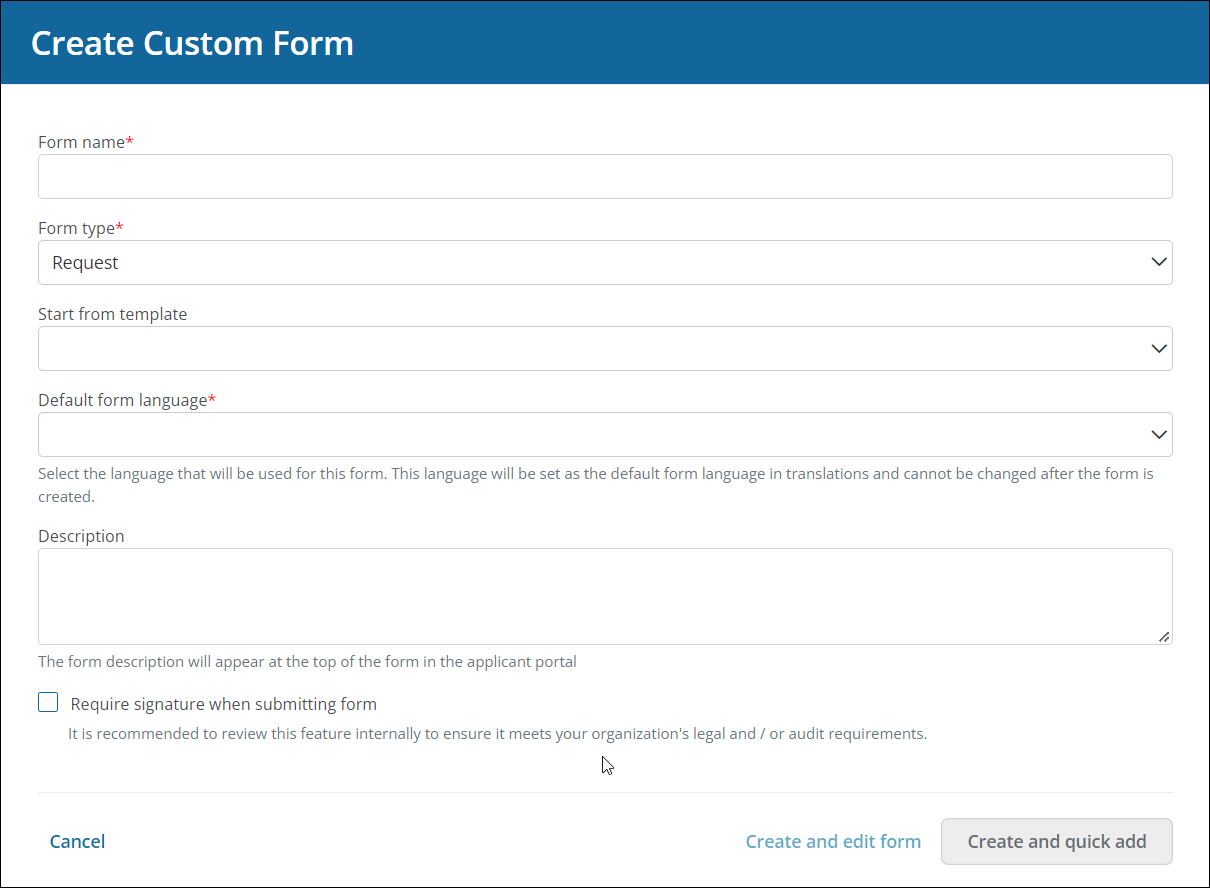
In the Create Custom Form screen, enter the form details.
-
Enter a clear name for the form so users can identify it later.
-
Select the form type.
Warning: You cannot change the form type after the form is created. If the type is wrong, create a new copy with the correct type and remove the original form.
Note: Choose the form type based on the audience and workflow. Some features require a specific type. For example, Program Automation requires a Routing Form. If you need help selecting the right option, see About Form Types.
-
Optional - If you want to start with a standard form template, select one from the Start from template field.
Note: Starting with a template can save time and give you a consistent structure. For details, see Create New Forms From Standard Product Templates.
-
Choose the default language for the form.
-
Optional - Provide a brief description.
Note: The description is visible to applicants. Use it to explain what the form collects, how long it may take to complete, or where to find supporting information such as a privacy policy.
-
Optional - Select Require signature when submitting form to require a virtual signature before the form is submitted.
-
-
Choose how you want to continue building the form.
-
Create and edit form - Create the form and open it in the Edit Form page so you can configure the layout and add fields in the Form Builder.
-
Create and quick add - Create the form and open the Quick Add tool so you can choose fields and components before you return to the Edit Form page.
Note: You can copy an existing form from the ellipses menu if you want to reuse a form structure.
-