Reject applications
Use rejection to close applications that do not meet eligibility, fit, or readiness criteria. You can reject one application at a time or reject multiple applications in a batch while recording the same decision details for audit and reporting.
To review application records before taking action, start in Applications.
When you reject applications, you:
-
Select a rejection reason.
-
Add internal comments that explain the decision.
-
Choose whether to send correspondence to the applicant.
Note: You do not need to complete duplicate checks or link records before rejecting applications.
Reject a single application
-
Open the application you want to review.
-
Select Pending submissions, Reject.
Warning: When you Reject a pending submission, the action is final. You can't restore a Rejected application.
-
Select the rejection reason that best matches the decision.
-
Enter comments to document internal decision context. There is a 2000 character limit on Comments.
-
Choose whether to send correspondence to the applicant.
-
Select Confirm.
Tip: The same steps can be followed if you wish to delete any Requests tied to online Applications submitted via the Applicant & Grantee Portal.
Reject multiple applications
-
Open the applications list.
-
Select the applications you want to reject.
-
Select Pending submissions, Reject.
-
Select one rejection reason for all selected applications.
-
Enter comments that should apply to all selected applications. There is a 2000 character limit on Comments.
-
Choose whether to send correspondence.
-
Confirm the action, then monitor progress while the system processes each application.
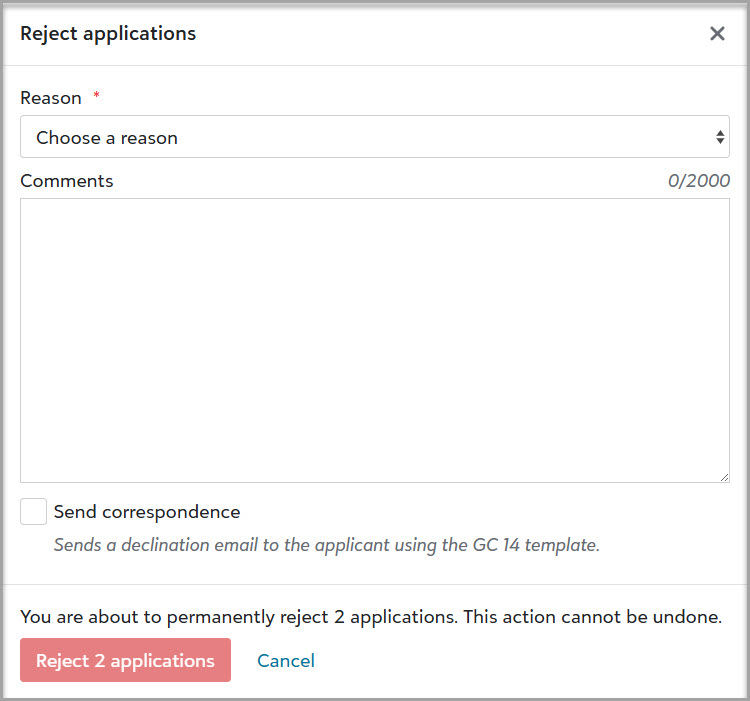
Correspondence
When enabled, correspondence sends a declination message to applicants. Use this option to communicate decisions consistently and reduce manual follow-up. For template planning and reusable messaging, see Correspondence.
Note: If you need status-notification guidance for individual and bulk communication workflows, review Notify Applicant of Status.
Tips and best practices
-
Use a standard rejection-reason taxonomy so reporting trends remain accurate across teams and cycles.
-
Write concise, objective comments focused on policy and eligibility criteria, not personal opinions.
-
Use single-record rejection when each application needs distinct rationale, and use batch rejection only when the same reason applies to all selected records.
-
Coordinate correspondence settings with your communications team to keep applicant messaging clear and consistent.
-
Run periodic audits of rejected records to validate reason quality, comment completeness, and policy alignment.