Convert Field Types
In some instances, form fields created as a specific type can be converted into another type without requiring calculations or conditional logic. This allows you to correct field types, ensuring they perform as expected in calculations and have proper formatting (e.g., zip codes, dates).
Currency fields
 Currency to Number
Warning: Field conversion may impact Ad Hoc report and dashboard filters. Automation rules tied to this field may be disabled.
-
Navigate to the Program Setup > Custom Forms > Form Fields tab.
-
Select the ellipses to the right of theCurrency field and then Convert to Number.

-
Confirm the action to update the field.
Date fields
Date to Text
Warning: Field conversion may impact conditional logic on forms using the field as well as Ad Hoc report and dashboard filters. Automation rules tied to this field may be disabled.
-
Navigate to the Program Setup > Custom Forms > Form Fields tab.
-
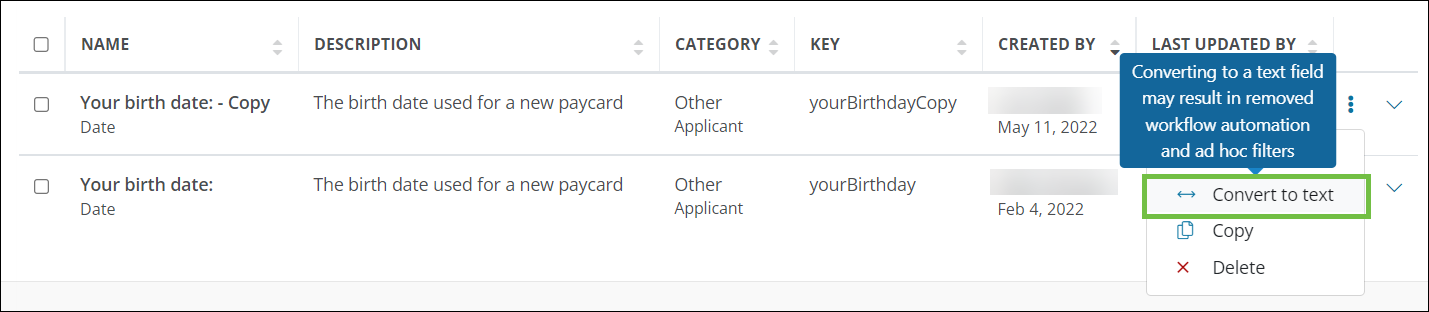
Select the ellipses to the right of the Date field and then Convert to Text.
-
Confirm the action to update the field.
Number fields
Number to Currency
Warning: Field conversion may impact Ad Hoc report and dashboard filters. Automation rules tied to this field may be disabled.
-
Navigate to the Program Setup > Custom Forms > Form Fields tab.
-
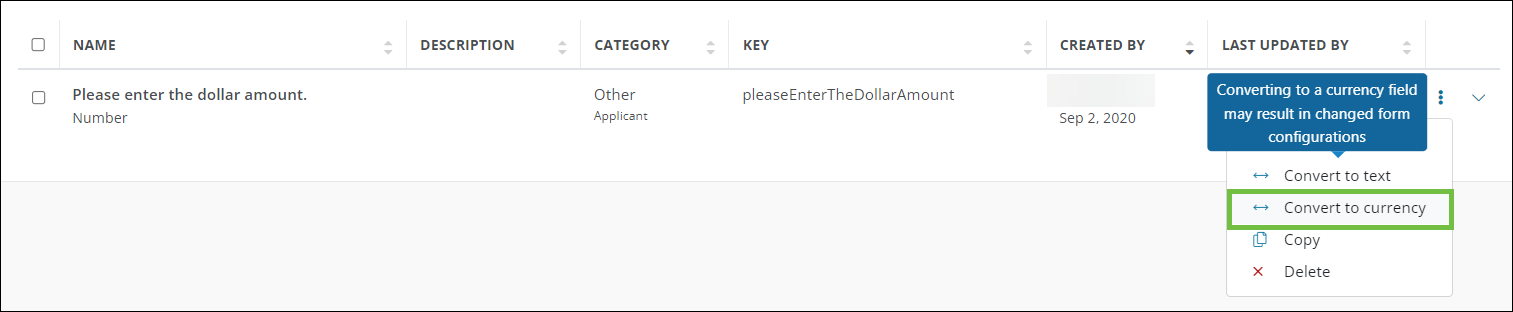
Select the ellipses to the right of the Number field and then Convert to Currency.
-
Specify the currency (e.g.,
USD) to apply to all existing responses.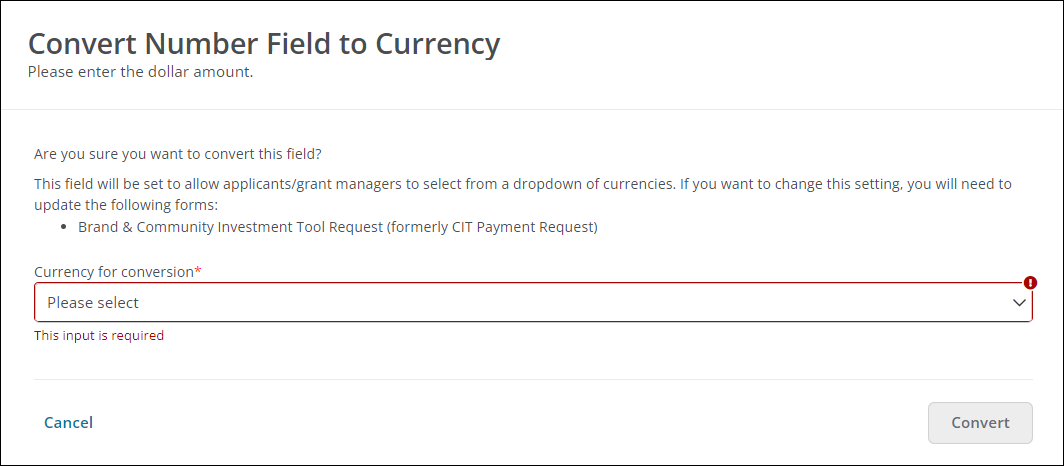
Note: Once converted, the field will be configured within existing forms to allow Grant Managers and applicants to select their desired currency. If you want to change this setting, you will need to update the field's configuration in the forms listed in the modal. For more information, see Create New Currency Fields > Configure field settings.
-
Confirm the action to update the field.
Number to Text
Warning: Field conversion may impact conditional logic on forms using the field as well as Ad Hoc report and dashboard filters. Automation rules tied to this field may be disabled.
-
Navigate to the Program Setup > Custom Forms > Form Fields tab.
-
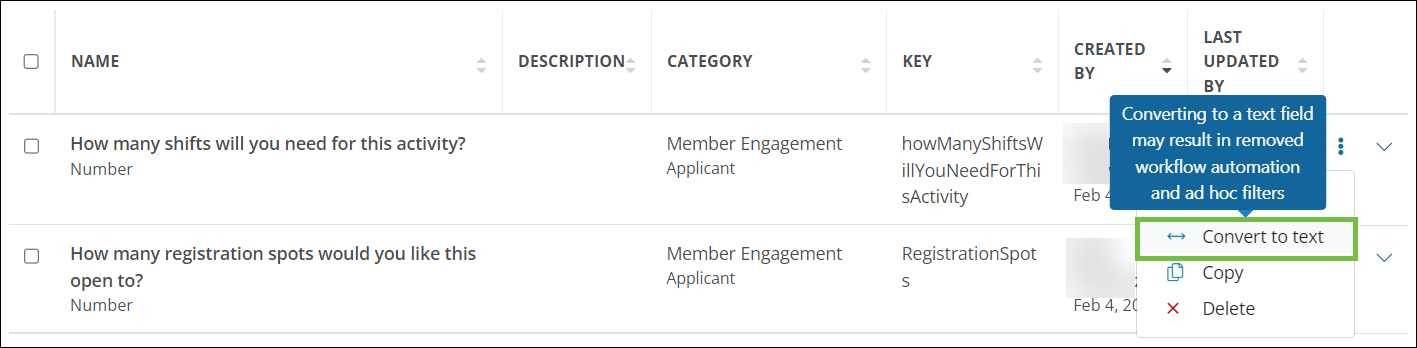
Select the ellipses to the right of the Number field and then Convert to Text.
-
Confirm the action to update the field.
Text fields
Text to Date
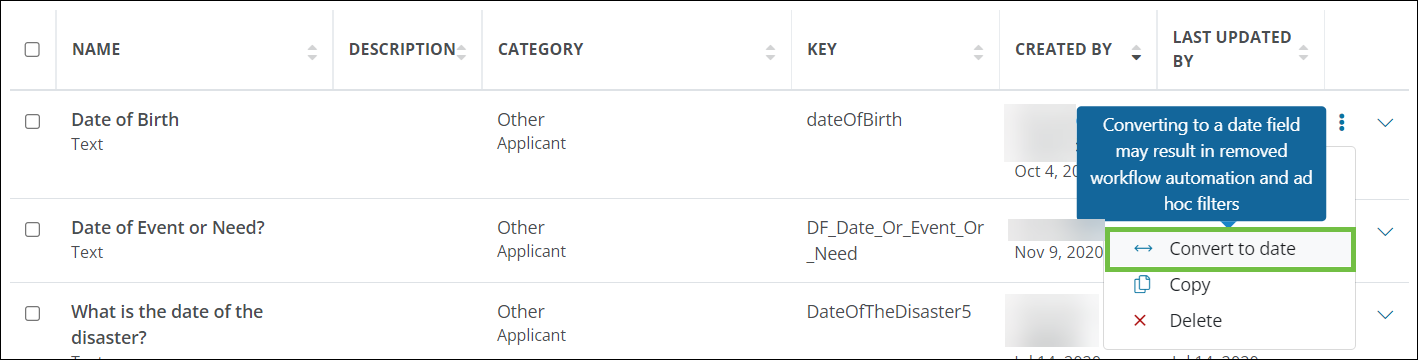
Warning: Field conversion may impact conditional logic on forms using the field as well as Ad Hoc report and dashboard filters. Automation rules tied to this field may be disabled. Additionally, any invalid or improperly formatted dates in Text fields will be cleared when converting to a Date field.
-
Navigate to the Program Setup > Custom Forms > Form Fields tab.
-
Select the ellipses to the right of the Text field and then Convert to Date.
-
Confirm the action to update the field.
Note: If Ad Hoc filters or automation rules are found to be impacted, you will be given the option to download these details for review prior to confirming the conversion.
Text to Number
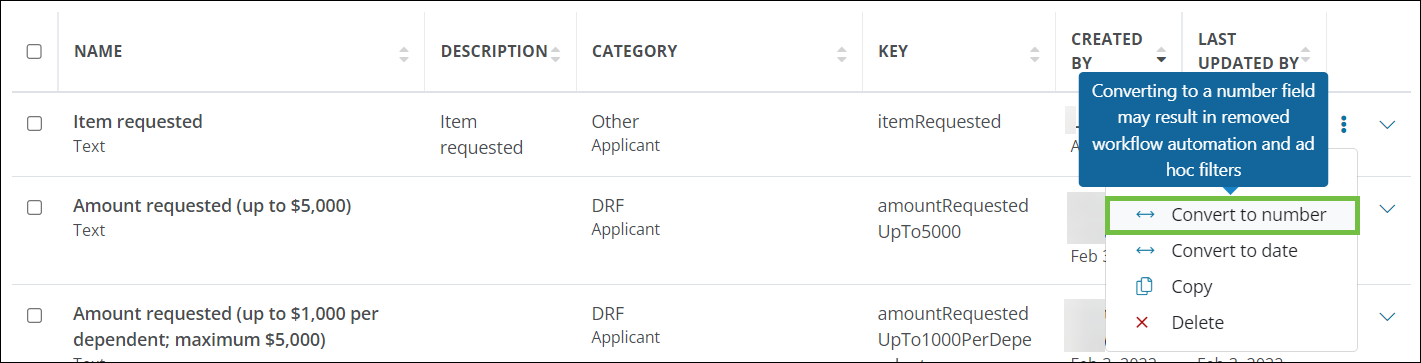
Warning: Field conversion may impact conditional logic on forms using the field as well as Ad Hoc report and dashboard filters. Automation rules tied to this field may be disabled.
-
Navigate to the Program Setup > Custom Forms > Form Fields tab.
-
Select the ellipses to the right of the Text field and then Convert to Number.
-
Confirm the action to update the field.
Text to Text area
Warning: Field conversion may impact automation rules if the Supports rich text formatting option is enabled for Text area fields.
-
Navigate to the Program Setup > Custom Forms > Form Fields tab.
-
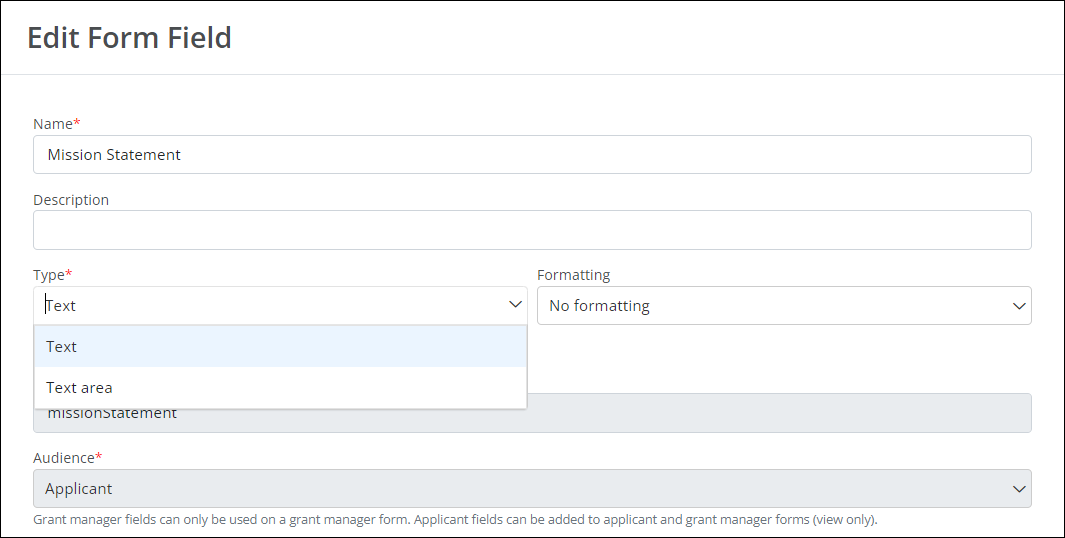
Select the ellipses to the right of the Text field and then Edit.
-
In the Edit Form Field screen, take the following actions.
-
Select Text area from the Type dropdown.
-
Optional - Enable the Supports rich text formatting option to present the rich text editor when completing the form, allowing content to be styled with bulleted lists and more.
Note: This option is unavailable if Supports multiple values is enabled. Additionally, responses with rich text formatting are stored as HTML and will be shown as such in reporting.
-
Optional - Enable the Supports multiple values option to allow users to add more than one response.
Note: This option is unavailable if Supports rich text formatting is enabled.
-
-
Save your changes.