Enable Fee Coverage
To give donors the option to help minimize your transaction costs, enable donor cover or Complete Cover on your donation and online registration forms.
 Configure fee coverage for a donation form
To offer a fee coverage option for donations, configure the donation form's checkout data element.
-
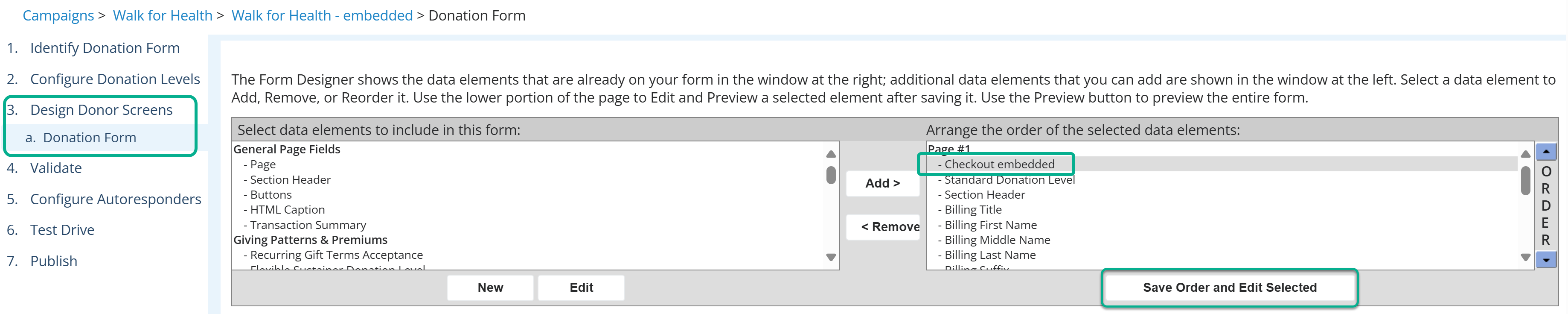
In Design Donor Screens, select your checkout element (Checkout modal or Checkout embedded), and select Save Order and Edit Selected.
-
Under Fee coverage, choose an option for payments through this form.
Blackbaud pays – With Complete Cover, Blackbaud pays the processing fees.
Donor pays – The donor can pay for your processing fees.
My organization pays – This offers no fee cover option to your supporters. Your organization pays the processing fees.
(Coming soon) Cover Plus - The donor can pay for your processing fees; You set the ask amount.

-
Save changes.
Configure fee coverage for TeamRaiser registrations
To offer a fee coverage option for your event registrations, configure the TeamRaiser's Payment Page with fee cover option. By default, the page defaults to having no fee cover.
Tip: This configuration applies to TeamRaiser event registrations only. To add fee coverage on TeamRaiser event donations, configure the donation form used by the TeamRaiser. See Enable Fee Coverage .
-
Go to Fundraising, TeamRaiser.
-
(For an existing TeamRaiser) Search for and locate your event, then select Edit from the Actions column.
-
(For a new TeamRaiser) Create your TeamRaiser, then Edit the TeamRaiser.
-
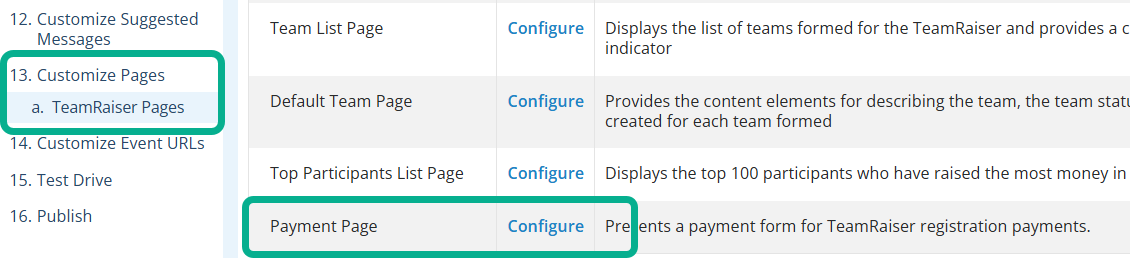
On the left, select Customize Pages.
-
Locate the Payment Page, and select Configure from the Actions column.
-
In the Payment Options section, under Fee coverage, choose an option for registration payments.
Blackbaud pays – With Complete Cover, Blackbaud pays the processing fees.
Donor pays – The donor can pay for your processing fees.
My organization pays – This offers no fee cover option to your supporters. Your organization pays the processing fees.
(Coming soon) Cover Plus - The donor can pay for your processing fees; You set the ask amount.
-
Save changes.
Configure fee coverage for TeamRaiser donations
To add fee coverage on TeamRaiser event donations, configure the donation form used by the TeamRaiser.
-
Determine the donation form used by the TeamRaiser.
-
In Design Donor Screens, select your checkout element (Checkout modal or Checkout embedded), and select Save Order and Edit Selected.
-
Under Fee coverage, choose an option for payments through this form.
Blackbaud pays – With Complete Cover, Blackbaud pays the processing fees.
Donor pays – The donor can pay for your processing fees.
My organization pays – This offers no fee cover option to your supporters. Your organization pays the processing fees.
(Coming soon) Cover Plus - The donor can pay for your processing fees; You set the ask amount.
-
Save changes.
Configure fee coverage for Calendar Events
-
On the left, select Edit Ticket Information.
-
Under Fee coverage, choose an option for payments through this form.
Blackbaud pays – With Complete Cover, Blackbaud pays the processing fees.
Donor pays – The donor can pay for your processing fees.
My organization pays – This offers no fee cover option to your supporters. Your organization pays the processing fees.
(Coming soon) Cover Plus - The donor can pay for your processing fees; You set the ask amount.
-
Save and publish your changes.
Configure fee coverage for Personal Fundraising
To offer fee coverage in Personal Fundraising, to associate the fundraiser with a donation form configured for fee cover.
-
In Fundraising, Personal Fundraising, select Edit for the fundraiser.
-
On the left, select Edit Campaign Details.
-
In Campaign Donation Form, select a donation form that is configured with fee cover.
-
Save and publish your changes.
Note: Support for fee cover in eCommerce is coming in a future release.