Update Your Profile
Manage your personal profile information within Blackbaud Verified Network. Your profile stores information about your role, responsibilities, and priorities across the nonprofits you manage. This information helps Blackbaud provide relevant resources and platform improvements.
Note: Your Blackbaud Verified Network profile is separate from your Blackbaud ID (your sign-in account). If you need to manage your sign-in credentials, see Update Your Blackbaud ID. To view and manage the profile for organizations you administer, see Manage Your Nonprofit Profile.
Set Up or Update Your Personal Profile Information
Share information about your nonprofit role, responsibilities, and goals. Your responses are used internally by Blackbaud to improve the platform and are not visible to other users in your organization.
Tip: You're asked to set up your profile when first signing in to Blackbaud Verified Network. After initial setup, it can be updated at any time in My account in Blackbaud Verified Network or for specific nonprofits in My Nonprofits.
-
Sign in to Blackbaud Verified Network at https://app.blackbaud.com/npp/.
-
Select your account icon and open My account.
-
Select About Me.
-
Fill in your profile information, including your roles and activities. Be as specific as possible—this helps Blackbaud tailor resources to your needs. Your changes save automatically.
Note: To remove a response, click on the x next to the selected answer.
Update Your Profile for a Specific Nonprofit
You can have different profile information for each nonprofit you manage. This lets you specify a different role or priorities for each organization.
-
Sign in to Blackbaud Verified Network at https://app.blackbaud.com/npp/.
-
Open My Nonprofits.
-
Select the ellipsis icon next to the nonprofit you want to change and then Update my profile.
-
In Update Your Profile, update your responses as they pertain to this specific nonprofit. This profile is separate from your general profile and only appears when managing this organization.
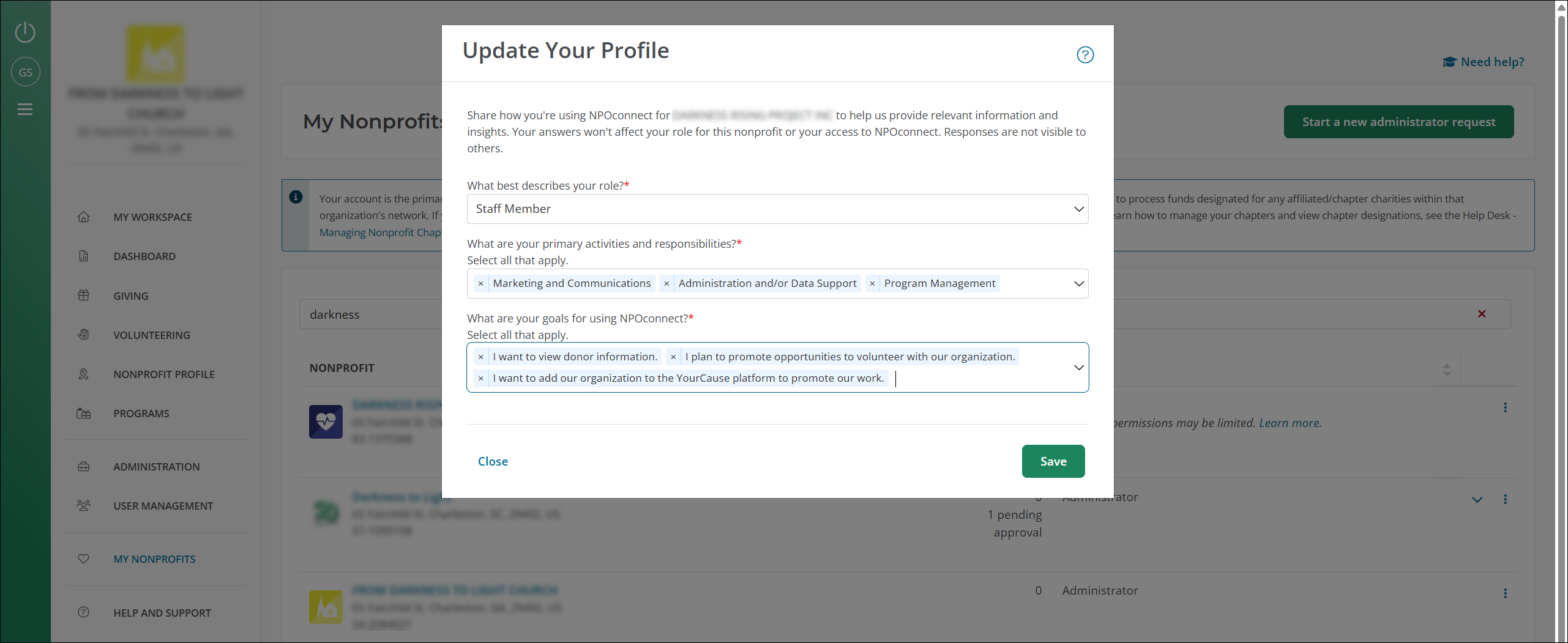
-
Select Save.
Tip: Repeat these steps for all nonprofits where your role, responsibilities, or goals differ from others you administer.
What Information Can I Share?
Your profile can include your role, activities, responsibilities, and goals for using Blackbaud Verified Network. An outline of these options are below.
 Options for: What best describes your role?
-
Executive
-
Manager or Director
-
Staff Member
-
Volunteer
-
Consultant
-
Board Member (Volunteer or Paid)
Options for: What are your primary activities and responsibilities?
-
Leadership and Strategy
-
Fundraising and Development
-
Marketing and Communications
-
Finances, Accounting, and Treasury
-
Information Systems
-
Event Coordination
-
Community and Volunteer Engagement
-
Administration and/or Data Support
-
Program Management
-
Education
Options for: What are your goals for using Blackbaud Verified Network?
-
I want to view donor information.
-
I need to reconcile donations and funds as part of our monthly accounting.
-
I plan to promote opportunities to volunteer with our organization.
-
I want to add our organization to the YourCause platform to promote our work.
-
I want more information about how Workplace Giving programs work.
-
I hope to build relationships with the donors and companies that support us.
-
I want to manage how my nonprofit receives charitable funds.
Be specific in your responses. The more detail you provide, the better Blackbaud can tailor resources, training materials, and feature updates to match your needs.
Note: Your profile information in Blackbaud Verified Network is not visible to other users in your organization or to donors. It is used internally by Blackbaud to improve the platform and provide targeted support. It is confidential and can be updated or deleted at any time.