Action Plans
Action plans help you turn an opportunity into a clear cultivation sequence you can actually execute. An action plan is an AI-generated cultivation sequence tied to a specific opportunity, built backward from an ask date or deadline with up to seven structured steps.
Each step includes AI-generated content, such as talking points, email drafts, or meeting prep, that you can review, refine, and iterate on before you add anything to your records.
When you’re ready, you can add the steps directly to the opportunity as actions so they show up in the Actions tile on the opportunity record and flow into daily work.
Tip: Action plans are a Premium feature available to organizations on Raiser’s Edge NXT Complete. Get started with premium features by taking our tutorial!
Before You Begin
Any user with access to Chat for Blackbaud AI and opportunity records can generate an action plan. For some portions, you also need access to Prospect Insights Pro.
What’s in an Action Plan
Each plan includes up to seven steps working backward from your ask date or deadline. Steps may include phone calls, emails, meetings, and mailings, each staged at intervals designed to move the relationship forward.
Every step includes AI-generated content specific to the donor and opportunity. You can iterate on any step in chat before applying it.
Create an Action Plan from a New Opportunity
When you create a new opportunity from Prospect Insights Pro, you can use Chat for Blackbaud AI to generate a comprehensive action plan that helps guide next steps and donor engagement.
-
Create an opportunity from Prospect Insights Pro, such as the Undergiving queue.
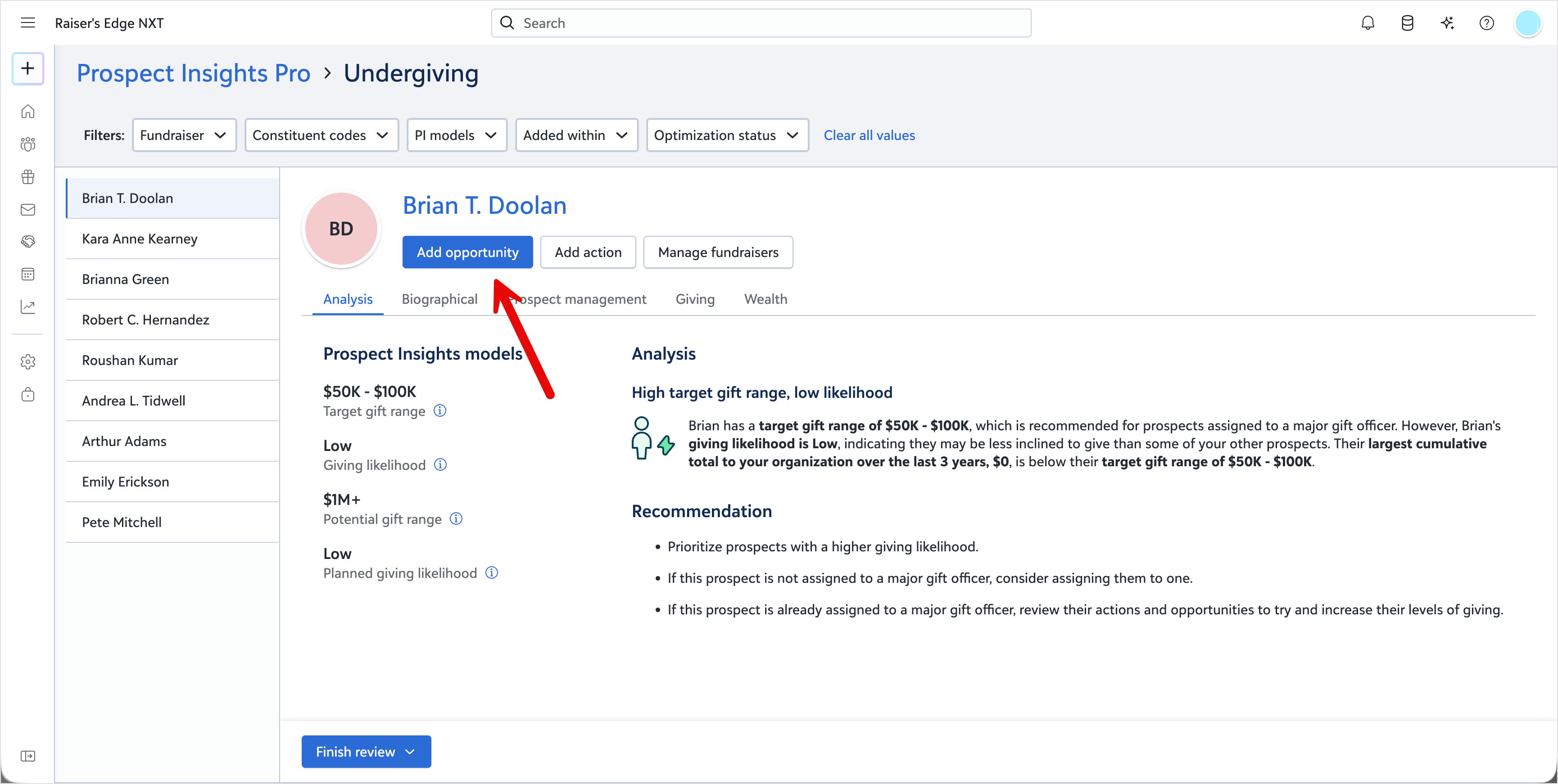
-
Enter the opportunity information.
-
Select Save.
-
After you save the opportunity, a confirmation message appears and prompts you to create an action plan.

-
Select Create an action plan for this opportunity. Chat for Blackbaud AI opens with the opportunity already in context and generates a comprehensive action plan.
-
Review the suggested actions.
Tip: You can ask for changes before you apply steps, such as “Make the first email more personal.” or “Shift all steps two weeks earlier.”
-
When prompted with Would you like me to add these steps as actions?, respond with Yes.
-
The action plan is created and attached to the opportunity. Review each action individually, or select Add all actions to add them in bulk.
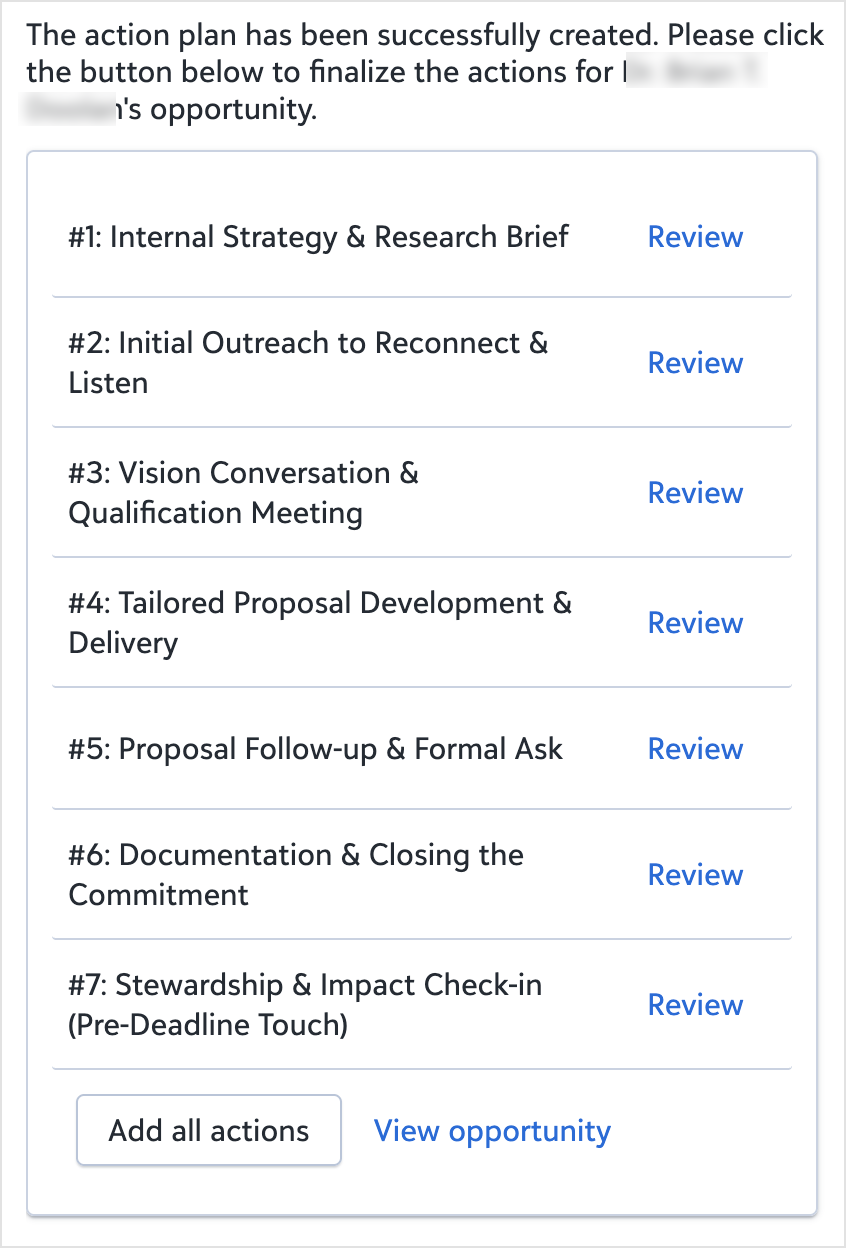
The opportunity now includes a complete action plan that you can use to track progress and guide engagement.
Create an Action Plan from Chat for Blackbaud AI
Open Chat for Blackbaud AI while viewing an opportunity record, or reference the constituent and opportunity in your prompt. If you are not viewing an opportunity record and the constituent has more than one, Chat for Blackbaud AI prompts you to select the opportunity to create an action plan for.
Examples:
Ask Blackbaud AI: “Create an action plan for my opportunity with [Constituent name].”
and
Ask Blackbaud AI: “Build a cultivation plan for [Constituent name], we’re asking for $50,000 by year end.”
You can then review and apply the action plan just as you would from the optimized opportunity workflow above.
Keep Action Plans Content Current:
If circumstances change, you can return to Chat for Blackbaud AI and request a new plan.
You may also see an inline recommendation in Action strategies when you open an action in your queue if previously generated content should be refreshed.
Tips for Better Action Plans:
-
Include your ask date or deadline in the prompt, because the plan is staged backward from that date.
-
Include the ask amount when you have one, because plans are calibrated to the size and type of the gift.
-
Iterate in chat before you commit, so the plan fits your relationship and style.
Frequently Asked Questions
 Can I apply steps one at a time instead of all at once?
Yes. You can review and commit each step individually or add the full plan at once.
Can I edit steps after they’re applied?
Yes. Once steps are added as actions on the opportunity record, you can edit, reorder, or delete them like any manually created action.
Is my data used to train the AI?
No. Your data is used to generate the plan for your session only and is not used to train Blackbaud AI models.