Document Intelligence - Payables Tutorial
Note: Don't see this yet? This feature is in Limited Availability (LA) and is releasing in waves. During the LA, we'll review and implement participant feedback to prepare for general availability.
Note: To use Document Intelligence to generate invoices from uploaded documents, your organization admin must first enable generative AI features in your Blackbaud environment. Learn how to opt in to generative AI features globally.
With Document Intelligence in Payables, Blackbaud Financial Edge NXT uses Microsoft's Azure AI Document Intelligence and Blackbaud AI to automatically extract key data from uploaded invoice files so you spend less time entering data and more time on your organization's mission.
Having trouble watching this video? View it in a new tab.
In this tutorial, you'll learn how to:
-
Assign the permission users need to generate invoice drafts.
-
Configure Document Intelligence settings in Payables, including upload rules, copy previous rules, inbox setup, and automatic conversion.
-
Generate invoice drafts by uploading invoice files.
-
Convert drafts to new invoice records.
Assign Permissions and Roles
Financial Edge NXT> Security> Role management
Before users can generate invoice drafts, a solution admin must assign them the Generate record permission task. This task is part of the Accounts payable role.
-
From Security, select Role management.
-
Select or open an Accounts payable role.
-
Under Record tasks, confirm Invoices is selected.
-
For the Invoices record permission, select Generate, then save.
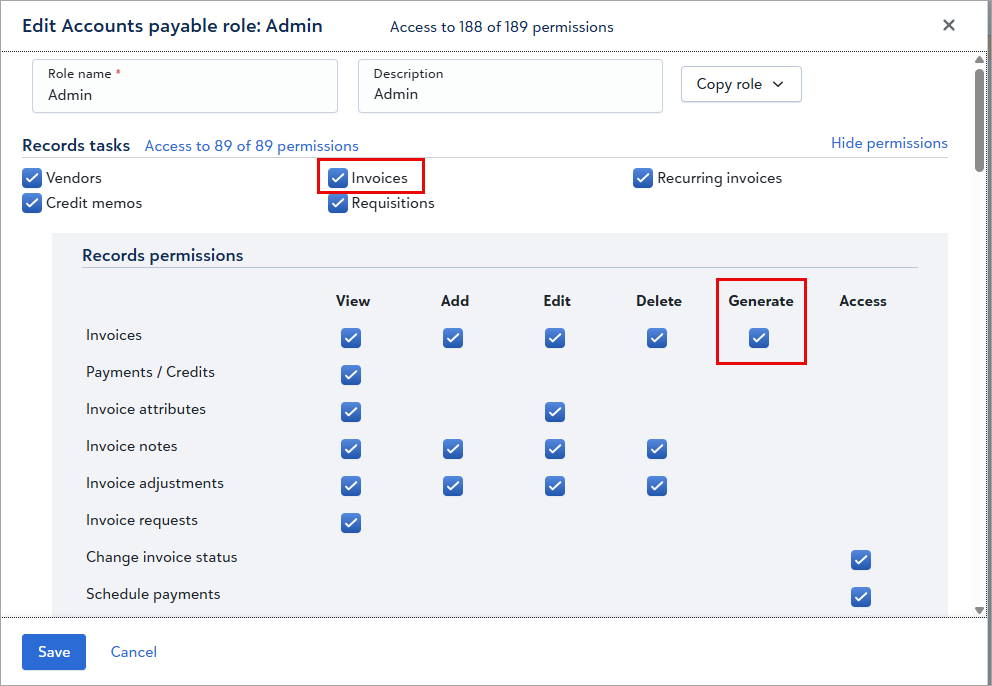
Note: Only users with the Generate record permission task can generate invoice drafts.
Configure Document Intelligence Settings in Payables
Financial Edge NXT> Settings> Payables> Document Intelligence
Admins can set specific rules in Settings, Payables, Document Intelligence to control how Document Intelligence handles data extraction, file uploads, and inbox processing.
Upload Rules
Financial Edge NXT> Settings> Payables> Document Intelligence> Upload rules
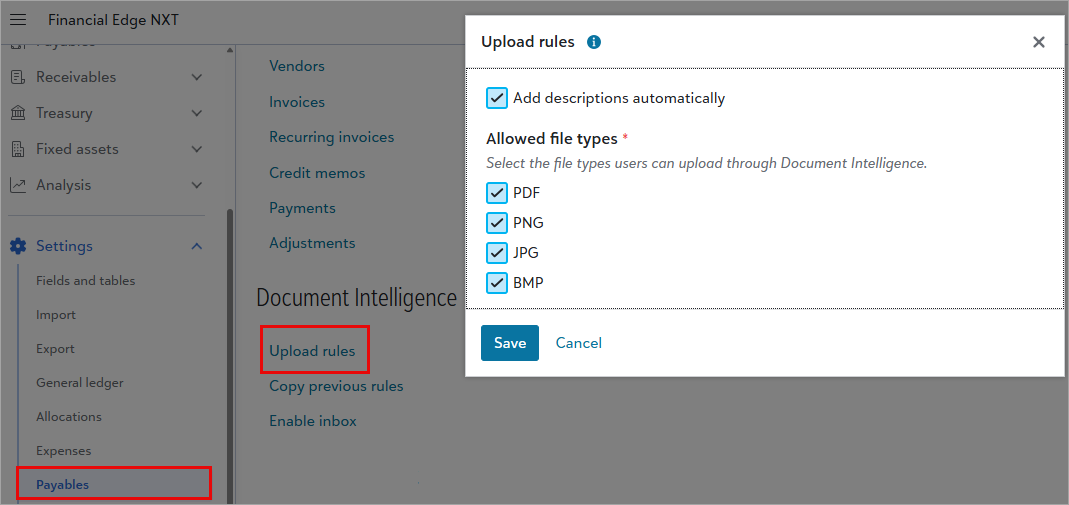
Upload rules control how Document Intelligence processes files and extracts invoice data. Select Edit, configure your preferences, then Save.
-
Automatically add descriptions — Let AI generate descriptions based on the uploaded file content.
-
Automatically add purchase order numbers — Let AI add purchase order numbers to invoice drafts.
-
Allowed file types — Select or clear each file type to control which types users can upload. Supported types include PDF, PNG, JPG, and BMP. By default, all types are available.
Tip: For details, review Document Intelligence - upload rules for generated invoices.
Copy Previous Rules
Financial Edge NXT> Settings> Payables> Document Intelligence> Copy previous rules
When users add a new invoice from a draft, they can copy a previous invoice from an existing vendor to save time. Copy previous rules let you specify which fields to include when copying. When users choose to copy, a message informs them that specific field values extracted during the generate process will be overwritten.
Select Edit, choose the fields to include when copying previous invoices, then Save.
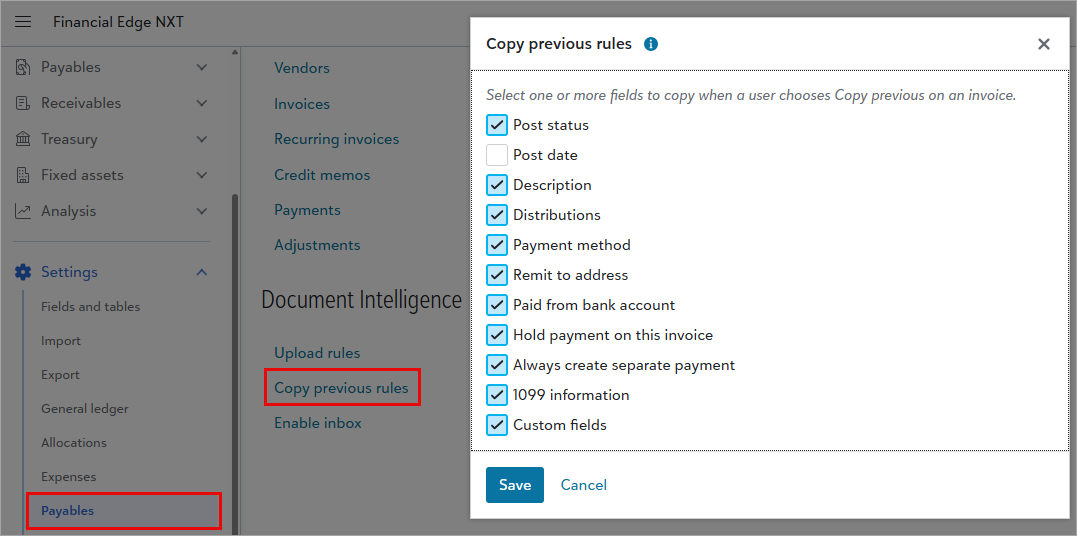
Note: Invoice date, due date, and invoice number never copy from a previous invoice, regardless of these settings.
Enable Inbox
Financial Edge NXT> Settings> Payables> Document Intelligence> Enable inbox
You can allow your team to send vendor invoices to a unique Payables email address. Document Intelligence then extracts invoice details and generates invoice drafts for review — no manual upload required.
Tip: Inbox setup is for admins only.
-
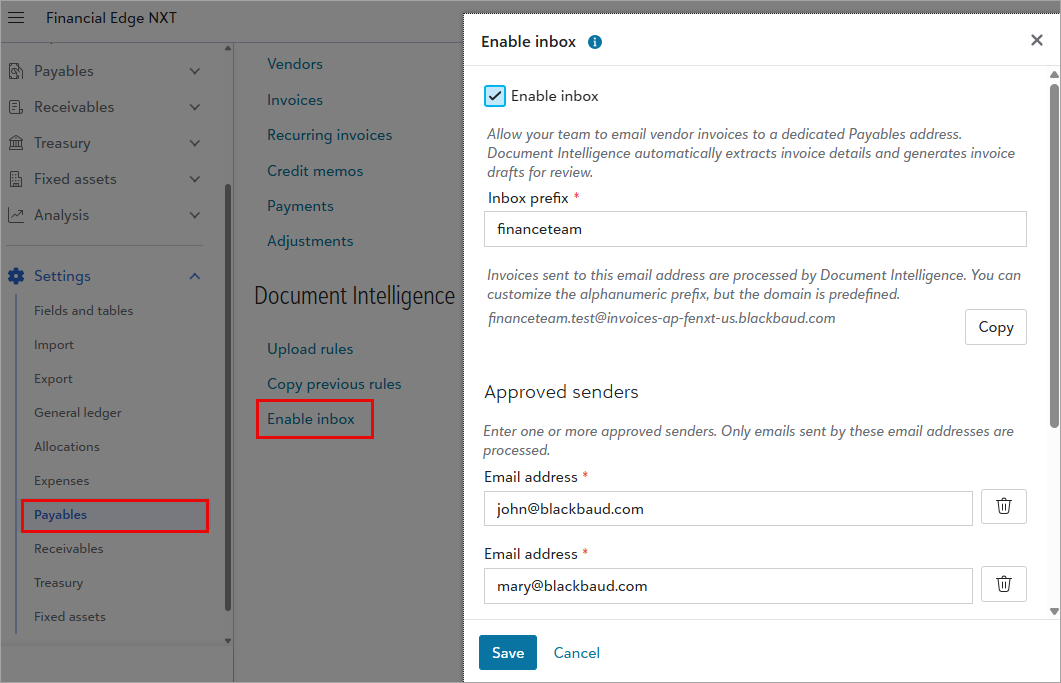
From Settings, Payables, Document Intelligence, select Enable inbox.
-
Select Enable inbox.
-
Enter an inbox prefix.
This is the customizable prefix in your Payables inbox email address. For example, if your inbox address is financeteam.test@invoices-ap-fenxt-us.blackbaud.com, then financeteam is your inbox prefix.
Prefixes must be alphanumeric (using only numbers and letters) and can be 3 to 64 characters long.
Tip: Use a simple, recognizable code — such as finance — so your team can quickly identify the correct inbox address.
-
Select Copy to share the exact inbox address with your team.
-
Enter one or more approved senders. Document Intelligence only processes emails sent by these addresses.
Warning: You must enter at least one approved sender. Approved senders can email attachments up to 10 MB.
-
Select Save.
Tip: For details, review Document Intelligence - enable inbox for generated invoice drafts.
Video: Enable a Document Intelligence email inbox
Automatic Conversion
Financial Edge NXT> Settings> Payables> Document Intelligence> Automatic conversion
For drafts that consistently come in clean and complete, automatic conversion skips the manual review step and turns them into invoice records as soon as Document Intelligence finishes processing them.
Tip: Automatic conversion setup is for admins only.
-
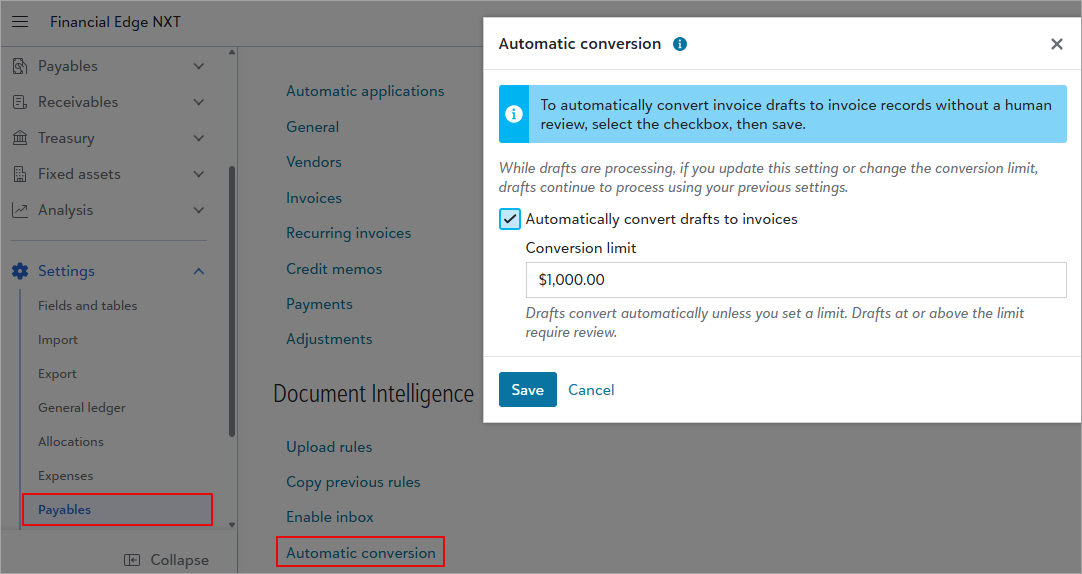
From Settings, Payables, Document Intelligence, select Automatic conversion.
-
Select Automatically convert drafts to invoices.
-
To send higher-value drafts for a manual review instead of converting them automatically, enter a conversion limit amount.
Drafts at or above this amount require review; drafts under it convert automatically. To convert drafts of any amount, leave this empty.
-
Select Save.
After converting, new invoice records display under the Standard tab. Drafts that don't meet the requirements display under the Generated drafts tab where you can review and take action as necessary.
Warning: Automatic conversion applies only to drafts generated after you save the setting. While drafts are processing, if you update this setting or change the conversion limit amount, drafts continue processing using previous settings.
Tip: For details, review Document Intelligence - automatic conversion for generated invoices.
Generate Invoice Drafts and Convert Drafts to New Invoice Records
Financial Edge NXT> Payables> Invoices> Generated drafts
Instead of manually keying in every invoice detail, you can upload an invoice file and let AI do the heavy lifting. Document Intelligence extracts key data points, including requestor, invoice number and date, description, due date, and purchase order number, and populates a new invoice draft automatically. The uploaded file attaches to the draft for a quick preview. From there, you can review the field values, make changes as needed, then create a new invoice record from the draft and continue with the invoice processing workflows that you have today.
The result is less time on data entry, fewer errors, and a faster path to invoice processing.
Tip: On the go? Take a photo of your vendor invoice and upload it directly from your device.
Generate Invoice Drafts
-
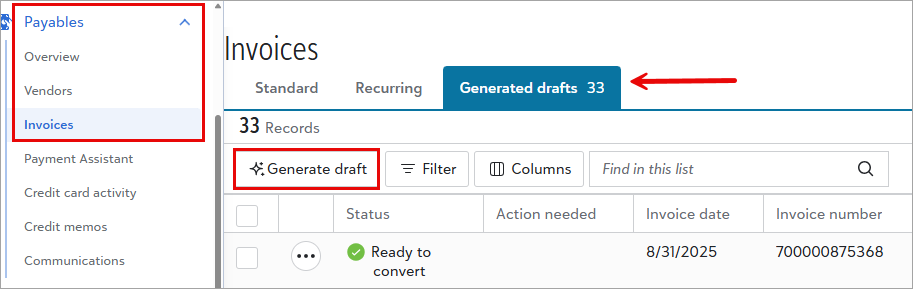
From Payables, Invoices, under Generated drafts, select Generate draft.
-
Select a file to upload (browse or drag and drop).
Tip: Supported file types include PDF, PNG, JPG, and BMP. Available types are set in Settings, Payables, Document Intelligence, Upload rules.
After you select a file, the file name displays as the attachment name. Edit the name as needed — scanners and photo applications often use their own naming conventions.
-
Select Generate draft.
Messages inform you when the process starts and completes. When the invoice draft is ready, select the message to open and view it.
Tip: You can also select the invoice draft from the bell icon under your top-level navigation.
-
Under the Generated drafts tab, view the newly added invoice draft. You're now ready to convert the draft to a new invoice record.
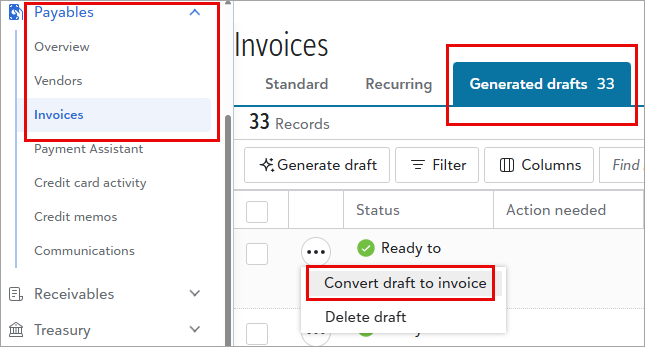
Tip: Before converting a draft to an invoice, note the status. When Take action is recommended, select Convert draft to invoice from the menu of a draft to open and make changes, then save.
For details, learn how to generate invoice drafts.
Convert Drafts to New Invoice Records
-
From Payables, Invoices, under Generated drafts, open a draft's menu and select Convert draft to invoice.
-
Review the pre-populated values added from the draft, including requestor, invoice number and date, description, due date, and purchase order number. Update any values as needed.
Tip: Review the generated data carefully. Vendor record details that default into the new invoice may differ from details on the uploaded invoice.
The uploaded invoice also attaches for a quick preview.
-
Choose an approval status.
-
Under Distributions, enter invoice distribution details.
-
Under Payment details, select a payment schedule and payment method, such as bank draft or credit card.
-
Complete any additional fields, such as credit memos, discounts, and custom fields.
-
Choose how to proceed.
Note that after you convert, drafts are removed from the Generated drafts tab and appear as existing invoices under the Standard tab.
-
Save and new - Saves and converts the draft to a new invoice record, then immediately opens a screen where you can add a new standard invoice (where Document Intelligence is not used).
-
Save - Saves and converts the draft to a new invoice record. You return to the Generated drafts tab.
-
Save and new from draft - Saves and converts the draft to a new invoice record, then immediately opens the next draft in the list.
-
Tip: If you've already created invoices for this vendor, save time by copying a previous invoice. A message informs you when extracted field values will be overwritten. To control which fields copy, update your Copy previous rules in Settings.
For details, learn how to convert drafts to new invoice records.
Video: Automatically convert Document Intelligence invoice drafts to records
Next Steps
Document Intelligence in Payables is part of a broader effort to make financial workflows faster and smarter. AI learns from the changes you make to extracted data, The more you use it, the more accurate it becomes over time.
For a deeper dive, explore these resources:
-
Document Intelligence for Payables - FAQs — Get answers to common questions about the AI technology, cost, and how AI learns from your data.
-
Upload rules for generated invoices — Review all available upload rule options.
-
Inbox for generated invoices — Full details on setting up and maintaining your Payables inbox.
-
Automatic conversion for generated invoices — Full details on setting up automatic conversion, including how the conversion limit works.
-
Generate invoice drafts — Step-by-step instructions for generating invoice drafts.
-
Convert drafts to new invoice records — Full details on converting drafts to new invoice records.
Video: Generate Payables invoice drafts with Document Intelligence