Quick Guide: Email Customization
GrantsConnect offers system email templates for every stage of your program lifecycle. You can use them out-of-the-box or customize them to fit your needs.
Before you begin
Your role must have the System - Can Configure Emails or System - All permission to manage system emails.
Why customize emails?
Customizing your emails gives you control over the information sent to applicants and grant managers, in addition to:
-
Align emails with your branding
-
Personalize communication using tokens
-
Provide program-specific information, like next steps and FAQs
-
Attach files and document templates to send to all recipients
-
Add CC or BCC contacts to notifications
-
Improve clarity and engagement
Available email templates
We offer more than 80 templates for applicants and grant managers based on actions taken in GrantsConnect. See Available Email Templates for a complete list.
Note: Most email templates can be customized. Emails generated by the system (e.g., GC-1 Welcome to GrantsConnect) cannot be edited.
How to customize email templates
Create the email copy
-
In Settings, System Emails, select a template and then Create copy.
Note: System-generated templates like GC-1 Welcome to GrantsConnect cannot be edited. If you're unsure if a template can be copied, see the Available Email Templates help.
-
In Create a copy, edit the email copy, including:
-
Email usage: Add a brief description of when this copy is used. For example, Declined due to ineligible location for GC-14 Your Application is Declined - ID: {{APPLICATION_ID}}.
-
Subject: Make it relevant and approachable. For example, Decision for {{PROGRAM_NAME}}.
-
Header: Update the text at the top of the email body. The banner color is based on your brand colors.
-
Content: Update the email body to make it more informative. Personalize content with the recipient's data using tokens.
-
Button text: Match the call-to-action to the email usage. For example, use Complete application if the email instructs them to submit their draft application.
Note: All applicant emails include a button that links back to the application. Default button text is Go to GrantsConnect.
-
CC or BCC contacts: Add recipients to notify.
-
Attachments: Attach document templates created in GrantsConnect (e.g., grant agreement) or file attachments (e.g., FAQs).
-
-
Use Insert token to add tokens for dynamic fields, like program name ({{PROGRAM_NAME}}).
-
Select Create to save the copy.
Tip: For complete instructions, see the Create Custom Email Copies help.
Translate copies
Email templates are auto-translated into your supported languages. Since email copies contain custom text, they are not translated. We recommend using the Translate tool to add your own translations for the languages you support.
-
In Settings, System Emails, select an email copy and then Translate.
-
Select the language and enter your translated text into the Subject, Header, Content, and Button text.
Tip: If you have translated versions of your attachments, be sure to update those as well.
-
Repeat for each language you support.
-
Save your translations.
Tip: For complete instructions, see the Translate Custom Emails help.
Preview emails (Recommended)
Use the Preview template tool in Settings, System Emails to view emails as they appear to recipients. This helps ensure formatting and tokens display as expected.
Tip: View translations by selecting the language in the preview. You can also send test emails that replace tokens with placeholder data. For complete instructions, see the Preview Emails help.
Assign to programs
You must specify which email templates and copies to assign to each program. In the Program Details, Communications tab of your program, select Activate for this program or Deactivate for this program.
Tip: You can also set a default copy for each email that allows customizations. For complete instructions, see the Set Up Program Emails help.
Select email copies at time of send
After customizing emails and finalizing program setup, select which email copies to send when taking an action. For example, all active email copies of GC-8 Your Grant Application Status - ID: {{APPLICATION_ID}} assigned to the program display when using the Notify of status tool. Refer to the email usage and subject to determine the copy to send.
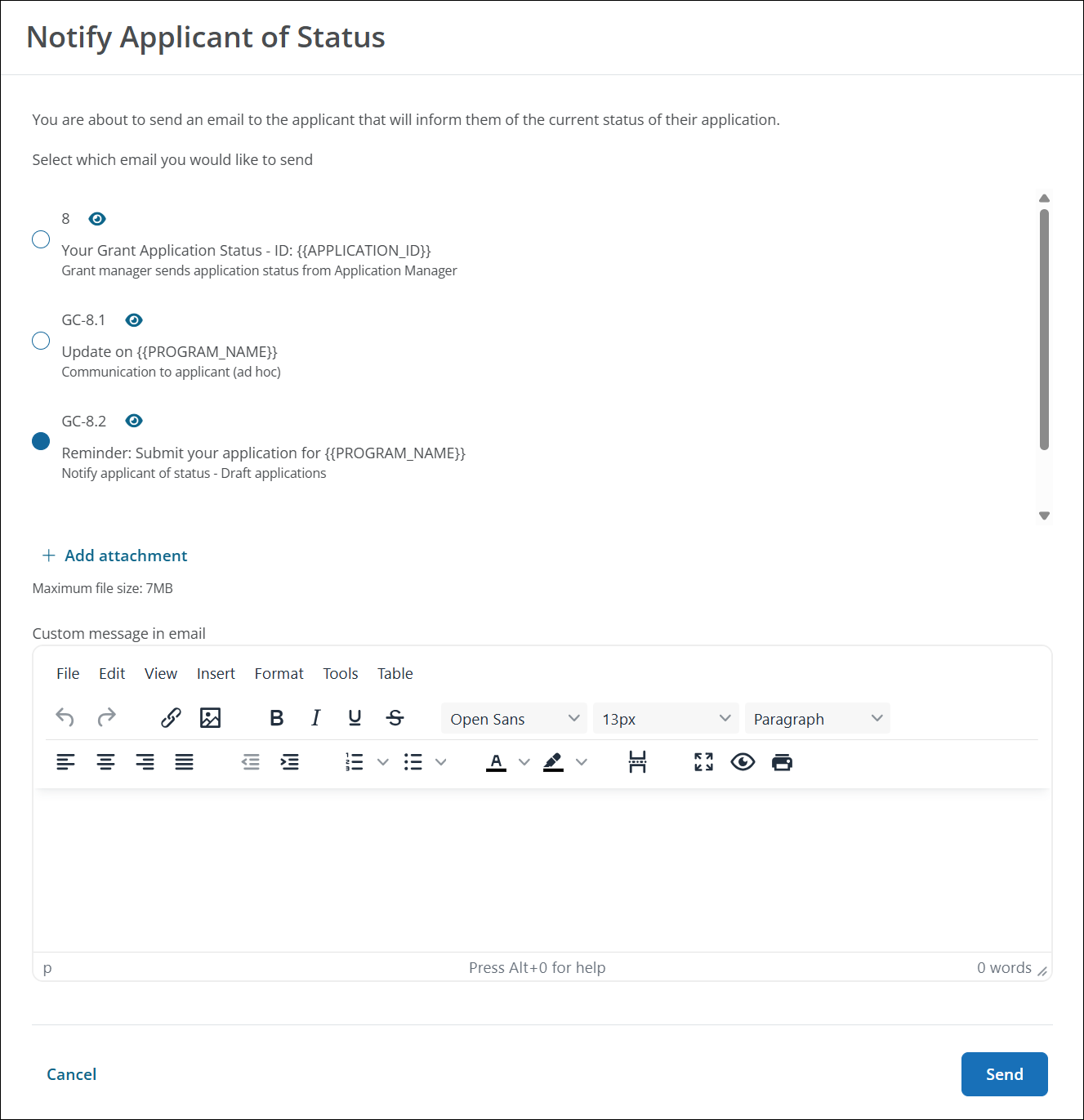
Tip: Select the eye icon to preview the template. You can also select Add attachment to add a file to send to the applicant. Some templates even give you the option to enter a message to include in the email for even more customization.
Examples of email copies
Below are email templates that are often customized.
GC-5 Application Form Submitted
This template is sent to an applicant when their application is submitted. We recommend updating it to give them as much information as possible upfront. This might include:
-
Next steps: Tell them you'll review their application and follow up with questions. Let them know of any requirements or instructions they need to complete while waiting.
-
Timeline: Give them insight into your timeline for review and approval. For example, We've received your application. Please allow up to 30 days to review.
-
FAQs: Link to commonly asked questions about your program on your website or attach a file with this information.
GC-14 Your Application is Declined
This template is sent to an applicant when their application is declined. We recommend updating it to soften the language and make it more personable. If needed, tell them why it was declined and encourage them to apply next year.
Example
Subject:Decision for {{PROGRAM_NAME}}
Content:Thank you for your application. Unfortunately, it did not meet the requirements of this program. While we find it worthy, we are not able to support your cause at this time.
Note: For nomination programs, use GC-21 Nomination Declined for {{NOMINATED_PARTY}}.
GC-13 / GC-15 / GC-50 / GC-18 Approved or Awarded
These templates are sent to an applicant when their application is approved or awarded. The email sent depends on the grant type (cash or in-kind) and the action taken (e.g., approved, award created, or approved and awarded at the same time). We recommend setting up your program so that only one of these emails is sent, helping to avoid confusion should applicants receive multiple emails.
-
GC-50 Your Application Approved and Awarded - ID: {{APPLICATION_ID}}(Cash awards only)
-
Tip: Send this email if you need the applicant to complete an additional form (e.g., grant agreement) when approved. Customize the content to include congratulations on their approval or award.
Note: For nomination programs, use GC-20 Nomination Accepted for {{NOMINATED_PARTY}} and GC-22 You have been nominated!.
GC-8 Your Grant Application Status - ID: {{APPLICATION_ID}}
This template is sent when you select Notify of Status on the application. It can also be used for other communications not covered by other templates.
Example
You want to notify applicants with unsubmitted applications that the program is closing. Create an email copy to send in bulk.
Subject:Program Closing Soon
Content: Thank you for your interest in {{PROGRAM_NAME}}. We see you started your application but never completed it. This program closes on {{PROGRAM_CYCLE_END_DATE}}. Please submit your application before then.
Tip: To send the email in this scenario, filter by Draft status in the Applications area. Using the Take action in bulk option, select all unsubmitted applications for this program and then select Notify of status. You then specify the email copy to send.
Best practices (Recap)
-
Name email copies descriptively by updating the Email usage field. This field is internal only. For example, Declined - Ineligible location.
-
Use tokens to pull in personalized data like applicant name, program name, and field responses.
-
Add translated copies to support global recipients.
-
Preview and test emails to verify formatting.
-
Deactivate unused templates for clarity.