Manage a Single Action
From the action record, you can manage information about the activity. Available tasks include:
To learn more about action records, see Action records. For information about managing action records, see Add or Edit Actions and Manage Multiple Actions.
Tip: Admins! In the database view, you can provide users with rights to manage actions. On the security group in Admin, Security, select Records, Options, and choose their privileges for Constituents and Actions (Constituents) record types.
Edit an Action
You can edit the details of an action, such as to adjust its date or assigned fundraiser, from its record, a list of actions, under Actions on its constituent's record, or under Actions on its opportunity's record. To edit an action, select Edit on its record or from its menu, adjust the information as necessary, and select Save.
To edit an action's custom fields or attachments, open its record. For more information, see Custom Fields or Attachments.
Tip: Don’t see this option? Contact your system admin for rights to make this type of change.
Note: For security reasons, your organization may limit access to information about some constituents. When an action includes a contact or fundraiser you don't have rights to, their name appears as Someone restricted. For more information, see Record Security.
Copy an Action
You can copy an action and its details, such as to duplicate it or assign it to another constituent, from its record. You copy an action under Actions on its constituent's record, or under Actions on its opportunity's record. To copy an action, select Copy on its record or from its menu, adjust the information as necessary, and select Save.
Delete an Action
Tip: When you delete an action, you permanently remove it. To keep an action for historical reference but remove it from a record or your To-Do list, mark it as complete.
Tip: Don’t see this option? Contact your system admin for rights to make this type of change.
Add an Action to a Calendar
To remind you of when an action takes place, select Add to calendar to add it to a calendar as an appointment. You can choose whether to always download appointments as .ics files, or automatically add them to Google Calendar or Microsoft Outlook 365. For more information, see Calendars.
Mark an Action as Complete and Choose the Outcome
As you finish an action, mark it as complete to track the progress and remove it from your To-Do list.
-
Select Mark completed on the action's record or from its menu on a list of actions.
-
Enter a quick summary or detailed notes (or both) about the action's results, such as a synopsis of the task or interaction, the constituent's response, or follow-up items.
-
If your organization uses action statuses, select the applicable Completed status. For information, see Action Statuses.
-
Choose the action's outcome — Good or Bad — and when it was completed.
-
Select Complete.
By default, only open actions appear on the Actions list in
Tip: Don't see this option? Contact your system admin for rights to make this type of change.
Notify a Fundraiser About a New Action
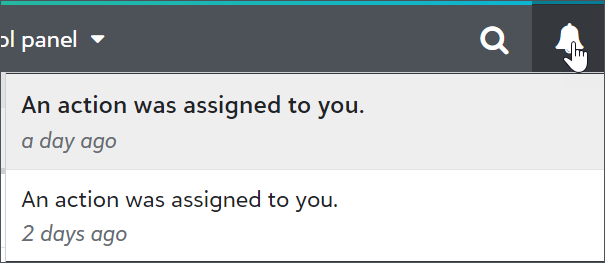
When you assign an action to a fundraiser, they receive a notification in the top-level navigation. Each notification includes a link to the action which the fundraiser can use to view details, including who assigned it to them.
Note: If you mark an action complete when you assign it, the fundraiser doesn’t receive a notification.
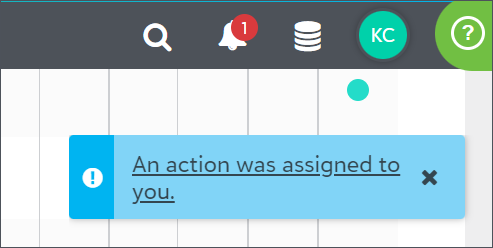
From the top navigation, fundraisers can also view a list of actions assigned to them in the past seven days.