What's Recent in 2026
To help you cultivate relationships and improve fundraising efforts, Raiser's Edge NXT introduces new and enhanced features on a frequent basis. In case you need to catch up on what you missed or just want a refresher, here's a recap of what was recently released in:
AI and Agents for Good | Constituents | Data Health | Data Management | Donation Forms | Email | Event Management | Fundraisers | General Features | Gifts and Gift Processing | Integration | Lists | Membership | Online Engagement | Opportunities | Portal | Premium Features | Prospect Insights | Query | Receipts |
AI and Agents for Good
 Adjust the size of Chat for Blackbaud AI
October 13, 2026
Read longer responses without leaving the page you're working on. When chat returns something wide, such as a table, drag the left edge of Chat for Blackbaud AI to make it wider, up to half of your browser window, then narrower again when you're done. Your width is saved, and you can double-click the edge to return to the default width.
If you use a keyboard, press Tab to move to the edge of the panel, then use the arrow keys to resize it.
Full screen is still available when you want more room. Select the double-arrow icon in the panel header to expand Chat for Blackbaud AI to full screen, and select it again to return to the panel.
Dictate action notes with Blackbaud AI
September 22, 2026
After a donor meeting, capture what happened without stopping to type it all out. Select the microphone next to Notes on an action, and speak your update — Blackbaud AI transcribes it for you and adds it to the top of the Notes box, keeping your existing notes intact below it. Spend less time writing up interactions and more time preparing for your next one.
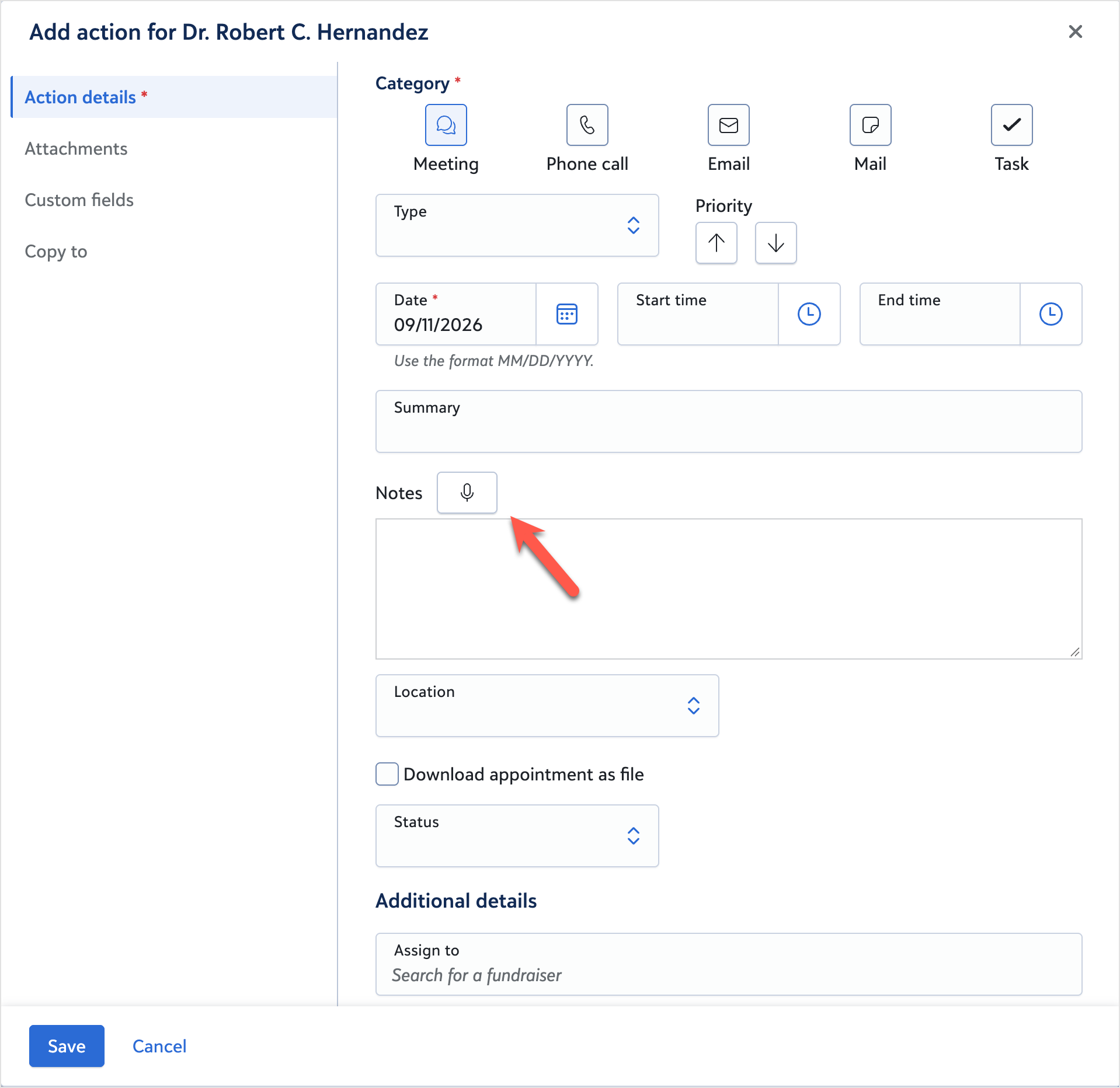
Tip: Dictation requires your organisation to opt in to generative AI features globally. Your solution administrator must also assign the Microphone with audio transcription task under Artificial intelligence roles in Security.
Note: Dictation isn't available when notes use rich text formatting, and your browser asks permission to use your microphone the first time you dictate.
Chat for Blackbaud AI Prompt Library now available
April 28, 2026
The Chat for Blackbaud AI Prompt Library is now available — giving you a faster, more confident path to better results in Chat.
Instead of starting from a blank window and guessing how to phrase a question, you can begin with curated, ready-to-use prompts built around real fundraising, stewardship, and operations workflows. Use them as-is or adapt them to fit your situation.
Prompts are organised by category, including analytics and reporting, constituents and relationships, donor engagement, event management, gifts and pledges, opportunity and moves management, prospecting, stewardship and retention, strategy and best practices, and general assistance.
The way you phrase a question directly affects the quality of the answer you get back. The Prompt Library removes the guesswork, so you can spend less time figuring out what to ask and more time acting on what Chat surfaces.
We'll continue to add new prompts as we expand the library and as Chat for Blackbaud AI grows. Look for the New badge to quickly spot the latest additions to the library.
Strengthen your online giving strategy with Chat for Blackbaud AI
March 31, 2026
Chat for Blackbaud AI helps you use online giving best practices to leverage donation forms features that make an impact and streamline decision-making. When you use tailored prompts, it helps you:
-
Create branding cards for Optimised Donation Forms to design consistent, compelling forms that strengthen your message.
-
Ask for online giving best practices so you can apply proven techniques that improve donor response.
-
Compare Online Express donation forms and Blackbaud Donation Forms features to understand how to transition to Standard and Optimised Donation Forms.
Note: This feature is available only if your organisation enables Generative AI features and you have permission to use them.
Unlock Smarter Fundraising with Chat for Blackbaud AI
January 27, 2026
We’re excited to introduce Chat for Blackbaud AI, powered by generative AI. This feature is designed to save you time, improve donor engagement, and make smarter, data-driven decisions — all within Raiser's Edge NXT. With AI-powered assistance, you can focus on what matters most: building stronger relationships and driving your mission forward. Instead of manually searching for answers, simply ask the AI to draft content, suggest creative ideas, or provide actionable insights based on your data and best practices.
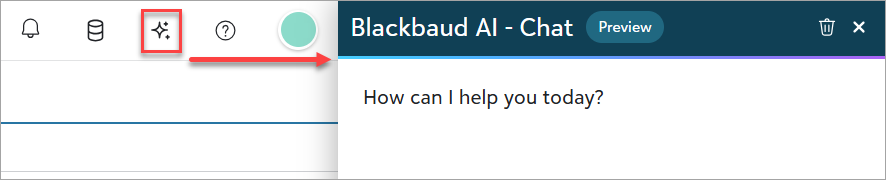
Think of it as having a helpful assistant:
-
You provide a prompt or question.
-
The system uses AI to generate a draft, suggestion, or summary.
You don’t need any AI technical knowledge to use this tool. Just type what you need, and the system will do the heavy lifting — saving you time and helping you focus on what matters most.
Tip: Do you have more questions about Blackbaud AI? Visit the Blackbaud Trust Center to view FAQs about Blackbaud AI.
How Can This Help You?
Here are some examples of what you can do with these new features:
-
Draft an email or message:
Example “Write a thank-you email to donors.”
Bonus! Give the chat some feedback about a detail you want added.
-
Generate ideas:
Example "Suggest three creative ideas for a year-end fundraising campaign."
-
Get quick answers about your constituents:
Example “Summarise key details about [constituent name] for my next meeting.”
-
Ask questions about fundraising best practices:
Examples “What are some best practices for re-engaging lapsed donors?” or “What follow-up actions are recommended after a donor meeting?”
-
Assist with fundraiser goals:
Examples “Show me my top prospects for major gifts this quarter.” or “Show me a list of constituents to contact this week.”
-
Ask about fundraising goals:
Example “Show me a total of all gifts received for the [campaign name] campaign.”
Tip: Some answers may include a link so you can see how Chat for Blackbaud AI answered the question. For this one, you can select View list to confirm the information.
-
Ask product help questions:
And this is only the beginning — AI can assist with many more tasks as you explore.
Tip: Keep the chat open as you navigate Raiser's Edge NXT. When new information is available, the chat will update automatically with summaries. For quick inspiration, try the suggested prompts to see what AI can do for you.
Tips for Better Results
-
Be clear and specific in your prompts.
-
Include context like donor name or campaign.
-
Review and customise the AI-generated content before sending or publishing.
-
Refine responses by asking follow-up questions.
-
Use it as a starting point — your expertise makes it great!
Why It Matters
Chat for Blackbaud AI helps you:
-
Save time by reducing manual research and drafting.
-
Stay focused on strategy instead of repetitive tasks.
-
Improve donor engagement with personalised content. Work confidently knowing you can edit and refine AI-generated content to match your tone and goals.
How to Get Started
-
Enable generative AI features – Before you can use Chat for Blackbaud AI, your organisation admin must opt in to generative AI features in your Blackbaud environment. Once enabled, the authorisation applies to all current and future generative AI features across your Blackbaud products. For details, see Opt In to Generative AI Features Globally help. If you don’t opt in, your organisation remains opted out by default.
-
Set permissions – Solution admins must assign the Artificial intelligence role to users who need access to chat.
-
Open the chat – In Raiser's Edge NXT, select the Chat for Blackbaud AI sparkle icon from the top navigation.
-
Review the Quick Start guide – Learn how to write effective prompts, refine responses, and get better results with our step-by-step tutorial.
Frequently Asked Questions
Is my data secure?
Yes! Your data remains secure. We follow industry-standard security measures to protect your information. Access to unapproved tools is restricted, and approved tools are vetted for privacy and compliance. AI responses are customised based on your organisation’s data and respect your configured security permissions. For more details, see our Blackbaud AI Terms of Use.
Do I need technical skills?
No. Just type your prompt and let the system handle the rest!
What if AI can't answer my question?
We’re always working to make Chat for Blackbaud AI more useful based on your needs. Your feedback helps us improve the experience and build tools that support your work. You can provide feedback in two ways:
-
Select the thumbs up and thumbs down icons in the Blackbaud AI – Chat and add details.
-
Submit suggestions and vote on ideas in the Raiser's Edge NXT Idea Bank under the Blackbaud AI - Chat category.
Global opt-in for generative AI
January 7, 2026
Organisation admins can now enable all current and future generative AI features powered by Blackbaud AI with one global setting — giving your organisation centralised control, clear compliance, and future-ready access to AI-powered tools that boost productivity and personalisation.
If you don’t opt in, your organisation remains opted out by default.
Learn more, including how to enable Generative AI features.
Constituents
Update giving preferences and contributions on a constituent record
Manage giving preferences and contributions from a constituent's record, under Prospect management.
Select Edit, Giving preferences to manage a constituent's giving preferences — Philanthropic interests and Will not give to entries, including optional comments for each one.
Note: The same interest can't appear in both lists at the same time.
Select Edit, Contributions to record a constituent's contributions to other organisations — philanthropic gifts, political contributions, and other giving, complete with the organisation, organisation type, amount, date, description, and comments. Totals on the tile update automatically as you make changes.
Automatically close constituent forms on your scheduleJuly 14, 2026
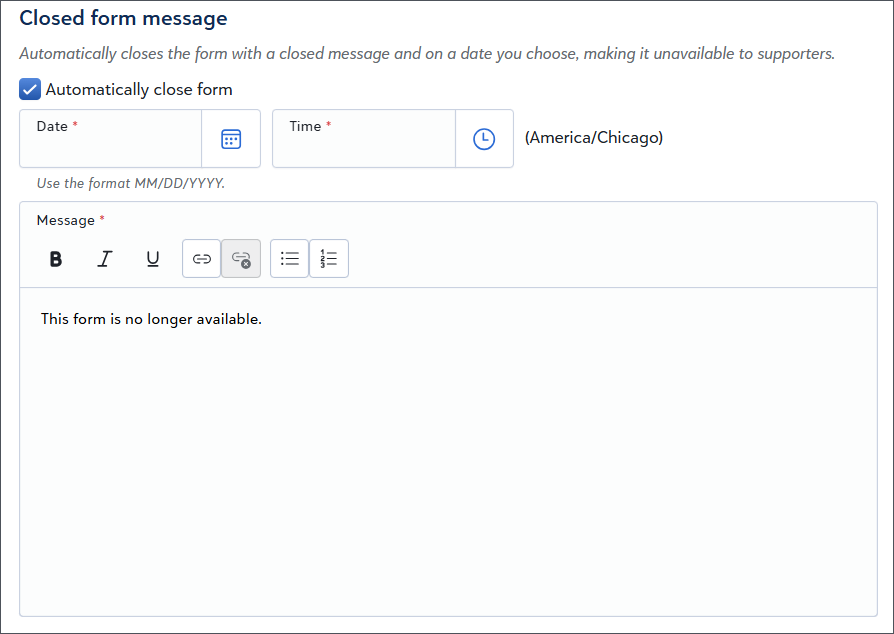
Now you can close a constituent form the same way you close a donation form. This gives you more control over form availability, so you can stop accepting submissions after a deadline passes without deleting the form.
From Confirmations select Automatically close form, set a close date and time, and customise the message supporters see after the form closes. If you don't set a custom message, a default message displays: "This form is no longer available."
Manage constituent lists with full accountability
July 7, 2026
With managed lists, you can create a constituent list where you control exactly who is included, and every addition or removal is tracked in a detailed changelog — giving your team full accountability over list membership.
When you create a managed list, choose a starting source — individual constituents, an existing list, or a query. If you start from a query list that already has a change log in database view, that history is automatically migrated into your new managed list so you retain a continuous audit trail.
Note: If you use query lists with a change log in the database view, managed lists bring that same capability into the web view.
To view who changed the list, when, and what they did, select Add/Exclude, View changelog.
Create legacy recognition programmes for giving societies
May 12, 2026
Recognition goes beyond saying "thank you" - it allows you to steward lasting relationships with your most engaged supporters. From Constituents, Recognition, you can create legacy programmes, the first of four distinct programme types to be offered, for your legacy donors that have given your organisation a planned gift or bequest. You can define rules based on your programme's needs, automate qualification, and manage recognition lists.
Build email sign up forms to save time and drive engagement
April 30, 2026
Online constituent forms help you drive engagement and streamline data entry. To make it easy for constituents to update their profile, choose communication preferences, and collect additional information on your website, create a form from Online Giving, Constituent forms.
Manage fund relationships in web view
April 14, 2026
Now you can manage fund relationships directly from constituent records and fund records using dedicated fund relationship tiles. This update lets you view, add, and edit fund relationships from either side of the relationship.
Track and process constituent updates in bulk
March 17, 2026
Bulk constituent process is now available to provide clear visibility into processing progress through a detailed status view. You can now process or reject process multiple constituent updates at once in web view. The behaviour varies by tab. For more information, see Bulk Constituent Processing.
Data Health
Data Management
Include inactive constituents in Online Data Review
September 1, 2026
When reviewing constituent records in Online Data Review, you can now include inactive constituents in search results and suggested matches. Inactive records are clearly identified to help you distinguish them from active constituents.
Centralised access and navigation for Online data review
June 23, 2026
Online data review is now organised under Data management in the left navigation, improving discoverability. Access is now tied to a new Data management role (replacing the fundraising role), with no changes to existing permissions or required user action on your part.
Donation Forms
Customise donor cover label for Standard Donation Forms and membership forms
September 22, 2026
Help donors better understand processing fee coverage with language that reflects your organisation's voice. You can now customise the donor cover label displayed on Standard Donation Forms and membership forms. When donors are asked to cover processing fees, they see the label you define.
This also moves the donor cover designation setting to Tools in Settings, placing both the designation selection and the label customisation in one place.
Send PDF receipts with donation form thank you emails
August 25, 2026
You can now include PDF receipts with donation form thank you emails, helping donors receive their receipt as soon as their transaction processes. This provides a faster receipting experience and reduces the wait for gifts to be committed in a batch before a receipt is issued. When you edit a donation form, from Confirmations you can:
• Choose how receipts are delivered
• Assign a receipt series
When you send receipts with the donation form thank you emails, donors can download their PDF receipt directly from the email.
Set payment start dates that match your campaign on Standard Donation Forms
July 28, 2026
Standard Donation Forms now let you set a start date for recurring gifts and pledges so they align with a campaign launch. When you set a start date, donors can only schedule their first payment on or after that date without risking charges before your programme begins.
Recapture lost gifts from donation forms
July 21, 2026
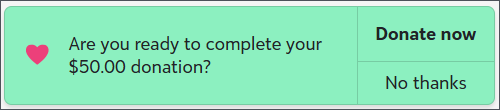
To increase completed gifts and improve conversion, activate the Abandoned donation reminder in Website components. The reminder prompts donors to complete their gift when they return to your website. This nudge helps recover incomplete donations and tracks how much you recapture.
Recurring gifts default to Monthly for Standard Donation Forms
July 14, 2026
New Standard Donation Forms now default to Monthly when you enable recurring gifts, reducing setup time and aligning forms with recurring giving best practices. Monthly is selected automatically in the configuration, and the recurring gift label updates to Monthly. When Monthly is the only enabled frequency, the frequency selector on the form is hidden from donors to streamline the giving experience. Existing forms remain unchanged.
Find the best branding card more quickly
July 7, 2026
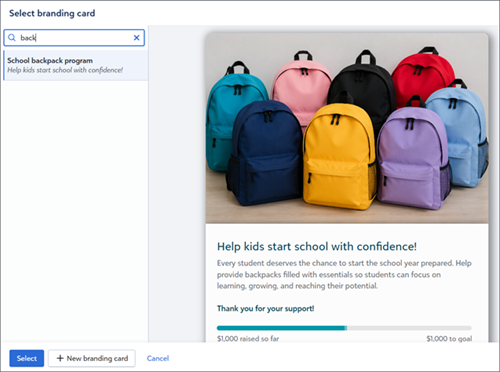
Optimised Donation Forms includes an enhanced branding card selector that helps you search, preview, and create branding cards in one focused experience when you build or edit a form. You can review the options in context and apply the correct branding with fewer steps. Previously, the selector showed only card names, which made it harder to evaluate your selection.
Capture consent only when donors take action on Optimised Donation Forms
June 16, 2026
Now, consent on an Optimised Donation Form records only when donors take action. When you create a new Optimised Donation Form and leave Select all opt-ins by default cleared under Consent preferences, Raiser's Edge NXT does not automatically record opt-outs on the constituent record. This helps you stay compliant and maintain accurate contact preferences.
Identify how donors give and which donation forms drive results
June 9, 2026
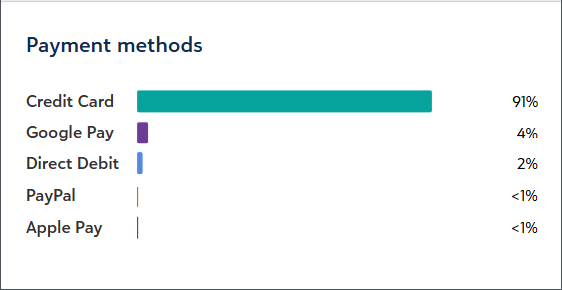
Now, Overview from Online Giving brings key insights together so you can quickly understand donor behaviour and donation form performance in one place. Review Payment methods to see which payment options donors use across your donation forms. Focus on the methods that make giving easier and more effective. Next, view the enhanced Top performing forms list to compare results, identify trends, and review your five highest-performing forms at a glance.
Reduce friction with optional addresses for Standard Donation Forms and constituent forms
May 26, 2026
To help reduce friction and support faster form completions, now when you include the address field on Standard Donation Forms and constituent forms, you can make it optional for supporters.
Automatically assign gift subtype from donation forms
May 5, 2026
To reduce manual updates when processing batches and improve gift classification, you can now assign a gift subtype on Standard and Optimised Donation Forms from the Hidden fields tab. After approving a batch, the gift subtype writes directly to the gift record.
Use Chat for Blackbaud AI to save time building Optimised Donation Forms
May 5, 2026
To help you build an Optimised Donation Form with less effort, Chat for Blackbaud AI provides a guided, conversational experience. From Raiser's Edge NXT, open Chat for Blackbaud AI and enter the prompt "Help me build a donation form". The chat will ask targeted questions and use the responses to shape the donation form as it is created.
Offer bill‑me‑later pledges on Standard Donation Forms
April 28, 2026
You can now offer a bill-me-later option for pledges, giving donors the flexibility to commit without providing payment during the donation form experience. This option supports pledge‑specific business processes where payment is collected later, either manually or through a separate process, while still capturing the donor’s intent and pledge amount up front.
Approve batches faster with automated package assignments
on donation formsApril 28, 2026
To reduce manual updates and help you approve batches faster, you can now assign a package on Standard and Optimised Donation Forms from the Hidden fields tab, or pass it through the form URL, to automate package assignment on the gift. After approving a batch, the package writes directly to the gift record.
Note: Campaign and Appeal now appear with Package on the Hidden fields tab.
Measure donation conversions with UTM data in Google Tag Manager
April 21, 2026
To better understand how donors reach your donation forms, you can now track UTM (Urchin Tracking Module) parameters using Google Tag Manager (GTM) and Google Analytics. When a donor opens a donation form with UTM values, GTM captures the parameters and sends them with donation form events to Google Analytics, where you can report on which campaigns, sources, and mediums lead to completed donations. This helps you connect giving activity to outreach efforts such as email and social media and evaluate campaign performance with greater confidence.
Spot trends and opportunities in Online Giving's enhanced Overview
March 31, 2026
To help your organisation understand donor behaviour, strengthen engagement, and create more effective donation forms, new key metrics and data analysis using Chat for Blackbaud AI are available from Online Giving, Overview.
New visualisations help you evaluate performance and take action:
-
Intelligent analysis summary is a Blackbaud AI-driven summary that highlights donor engagement and online revenue trends so you can understand what is driving results.
Note: The summary is available only if your organisation enables Generative AI features and you have permission to use them.
-
Performance summary shows online giving trends that help you see where to focus your fundraising efforts.
-
Conversion rate reveals how effectively your donation forms turn visitors into donors.
-
How are you raising more? shows the revenue generated by key donation form features so you know which options make the biggest impact.
New merge fields for more personalised email greetings
February 17, 2026
When creating an email to send to constituents, you can now use two new merge fields — Primary addressee and Primary salutation — to personalise how recipients are addressed. These options help ensure greetings reflect a constituent’s preferred name or salutation rather than relying solely on a full name. To insert them, select Merge, then Donor, and choose the appropriate field. If a primary addressee or salutation isn’t defined, the email automatically falls back to the constituent’s full name, so your message is always complete and ready to send.
Event Management
Better duplicate prevention with expanded Online data review for Events
May 5, 2026
A workflow change is coming for events users in web view. Online data review is expanding to include event registrations. If you have an active web view event registration form, review and update your Online data review settings to ensure these transactions are included.
Training: See a quick overview of Online data review in this micro learning video.
Read the blog article that walks through how event registrations were handled before and how they are handled now.
Link and unlink events and campaigns in web view
You can now manage linked events directly from a campaign record, streamlining your event tracking and fundraising oversight.
Fundraisers
Quickly focus on opportunities by gift type
February 24, 2026
You can now filter Opportunity lists by Gift type, making it easier to see whether an opportunity is expected to result in pledges, gifts in kind, or other gift types. From Portfolio, Opportunity lists, open a list and select Filters. Under Opportunity details, choose Gift type and apply the filter.
You can also add Gift type as a column to quickly scan and compare opportunities at a glance. This helps you prioritise follow‑up without opening individual records. Select Columns, Opportunity details, choose Gift type, and apply the change.
Tip: Gift type information is sourced from the opportunity record and reflects the value shown on the Details tile.
General Features
Create a list from a dynamic query
September 1, 2026
Save time keeping frequently used lists current: you can now create a constituent, gift, or action list directly from an eligible dynamic saved query, instead of rebuilding the list each time its matching records change. Select a dynamic query that matches your list's record type.
Benefits are now available in web view
July 7, 2026
Benefits are incentives you provide in return for support, such as donations, memberships, or participation in gifts and appeals. They can include items like merchandise, event access, discounts, or other perks that add value to the constituent experience.
While each area uses benefits in a different context, they all follow the same general concept. You define the benefit in code tables, specify how many you provide, and record its value. You can also track when you send or fulfil each benefit.
Redesigned Campaign, Fund, and Appeal Records for Faster Insight
May 12, 2026
We've redesigned and modernised the Campaign, Fund, and Appeal record experience in Raiser's Edge NXT to make it easier to understand performance, uncover trends, and take action. The updated records use a focused tab layout and new data visualisation tiles to highlight what matters most — so you can see fundraising progress, donor engagement, and momentum in one view.
Instant Performance Visibility
Each record now opens with an Overview that displays key metrics, trends, and progress indicators, including Projected revenue, Cumulative giving, Revenue by month or Revenue by year, and Donors by month or Donors by year depending on the time period selected. See how an initiative is performing and identify where attention is needed — without opening reports or rebuilding filters.
Actionable Insight Without Extra Navigation
From a single record, you can move from:
-
High-level performance (Overview)
-
Transaction-level detail (Gifts)
-
Donor participation and engagement (Donors)
-
Deeper visual analysis (Analysis)
This makes it easier to validate results, explore patterns, and act — all without leaving the record.
Fund-specific Additions
Fund records include two additions built with finance collaboration in mind. The Gift list now displays Fund ID alongside Fund description, making it faster to cross-reference with your finance team without manual lookups. A dedicated GL Distributions list gives finance partners direct visibility into how fund activity maps to your nominal ledger — all within the record.
Appeal and Package Additions
Appeal records include a Package list, giving you a clear view into the components driving your appeal's performance. Additional package analysis and comparison tiles are planned for a future release.
A Record You Can Extend
You can now add new SKY Add-ins tabs to Campaign, Fund, and Appeal records to display the information that matters most to your organisation — so the record works the way your team works.
The redesigned Campaign, Fund, and Appeal records are available now and integrate into your existing workflows. Open a record to explore the new experience and see how much easier it is to understand performance.
Manage appeals from a constituent record
April 21, 2026
On a constituent record, you can link or unlink existing appeals and update certain appeal details, without impacting historical gifts or interactions. This update provides a more direct way to maintain accurate appeal associations for constituents.
Manage campaigns, funds, and appeals directly on associated linked records in web view
April 21, 2026
You can now manage campaign, fund, and appeal details directly from their associated records, making it easier to keep track of information and improve your financial oversight:
-
Linked appeals and campaigns on Fund records
-
Linked campaigns and funds on Appeal records
-
Linked appeals and funds on Campaign records
Campaigns and Funds on Action records
February 10, 2026
You can now add, edit, and remove Campaigns and Funds directly on an Action Record. This allows you to keep the action tied to the appropriate fundraising effort without leaving web view. For additional information, see Action Records.
Gifts and Gift Processing
Manage default gift distributions in web view (for some of you)
October 13, 2026
You can now manage default nominal ledger distributions in web view as part of your gift posting setup. In the distributions list, add, edit, or delete rows and assign a Debit Account #, Credit Account #, and Interfund value for each Gift Type.
Manage matching gifts throughout the gift lifecycle
September 24, 2026
You can now manage matching gifts in web view throughout the gift lifecycle, from setting up an organisation's matching gift plan to creating and processing matching gift pledges. You can:
-
Set up matching gift information on organisation constituent records.
-
View active matching gift plans and related details on constituent relationships.
-
Review potential matching gifts and create matching gift pledges from gift records.
-
Use the new Matching gifts column during batch entry to review potential matches, link matching gifts, and edit or remove linked matching gifts.
Adjust existing gifts in web view
September 24, 2026
You can now modify existing gifts and record adjustments directly in web view. When you edit a posted gift, you can include an adjustment with your changes to update gift amounts and related fields. Once adjustments exist on a gift, you can review them or manage pending ones directly from the Adjustments tile.
The enhanced gift adjustment workflow lets you:
-
Create new adjustments on editable gifts.
-
Edit existing unposted adjustments.
-
Maintain complete audit history for all changes.
This capability applies to posted gifts and supports adjustments for standard, pledge, and sold share gifts. The original gift remains unchanged while the adjustment records the update.
Create and manage manual pledges and recurring gifts
September 22, 2026
You can now create pledges and manual recurring gifts in web view. When you add a recurring gift, select Processes manually to keep it from processing automatically. Manual recurring gifts are fully supported in both the Single Gift Add and batch workflows, including creating the gift and applying its payments. Credit card and debit card pledges entered in web view can be processed manually when you select this option. You can:
-
Create a manual recurring gift from the Single Gift Add form.
-
Apply a payment gift to a matching manual recurring gift from the single-gift form. When a banner identifies an open recurring gift, select Apply this gift, choose the recurring gift and instalment, and apply the payment.
-
Create a manual recurring gift in a batch, or apply a payment gift to a matching manual recurring gift. For payments, add the recurring gift column, select Apply to recurring gift, and choose the recurring gift and next instalment.
Grid batch: New fields are available to add to batch
September 22, 2026
The following fields are now available for you to add as columns to a batch: marketing source code, mailing ID, finder number, send reminders, receipt number (read only)
Grid batch: Link event registrations to gifts in grid batch
September 22, 2026
You can now link a gift to an event registration directly in grid batch. Add the Event Participant column to the batch, select Link event participation. Select from the list of event registrations to link the gift to, or search for an event registration from a different constituent.
Grid batch: Link benefits to gifts in grid batch
September 22, 2026
You can now link a gift to a benefit directly in grid batch. Add the Benefits column to the batch, then open the Link benefits modal to search for and link to any of the donor's existing benefits.
View gifts associated with a tribute
September 15, 2026
From a constituent record, you can now select View gifts on the Tributes tile to review the gifts associated with a tribute and open the related gift records.
Grid batch: Apply a value to multiple rows at once
September 15, 2026
In grid view batch, you can now update a field for multiple rows at once instead of entering values one row at a time. Select Update column value at the top of the grid batch, choose the field and the value to apply, and choose whether to overwrite values that are already in the field. After you confirm the change, it applies to every editable row in the grid.
Grid batch: Add gift notes
September 8, 2026
You can now manage gift notes directly in the grid batch. Add the new Notes column to the grid, then enter a gift type, date, summary, and note.
Grid batch: Link memberships to gifts in grid batch
September 8, 2026
You can now link one or more membership records to a gift directly in grid batch. Add the Membership column to the batch, then open the Link membership modal to view and link to any of the donor's existing memberships.
Grid batch: Set the Gift Aid qualification method on gift splits in grid batch
September 8, 2026
Keep Gift Aid claims accurate in batch when only part of a gift qualifies. Add the Gift aid qualification method column to the grid to edit it inline for a single split. Or from the Split gifts modal, set it across multiple splits at once. You can choose any of the following Gift Aid qualification methods: Apply rules when saving, Set as Qualified, or Set as Not Qualified.
Grid batch: Maintain gift order
September 1, 2026
When saving a batch, the gifts now maintain the order in which they were entered in the grid view.
View HMRC validation errors for failed Gift Aid claims
August 25, 2026
When a Gift Aid claim fails HMRC validation, you can now view the specific error messages returned by HMRC. Review errors from the new HMRC Response tab on the claim record to help identify and resolve issues before resubmitting your claim.
Configure journal references in web view
August 11, 2026
Configure custom journal reference field names and lengths directly from Post gifts settings. These settings are applied during gift posting, making it easier to align posting workflows with your organisation's accounting and export requirements.
Edit details on every gift record
August 11, 2026
You can now edit details on every gift record directly from web view, whatever its type or status. Select Gift details — previously Gift amount — to update the gift's amount, gift date, subtype, post status, post date, splits, and credits, without leaving the record. What you can update depends on the gift's status. Support for editing locked information through gift adjustments arrives in an upcoming release.
Grid batch: split gifts by percentage and set split defaults
August 4, 2026
In grid view batch, you can now split gifts by percentage instead of calculating individual amounts per split. Add the split column to the grid, then enter percentages for each split. In a batch template, you can define default split percentages to be automatically applied to gifts in the grid.
Link opportunities to gifts in grid batch
August 4, 2026
You can now link opportunities to gifts directly in grid batch, helping you capture relationships during entry and reduce follow‑up work. After you add the Opportunities column, you can link existing opportunities, create new ones, or associate opportunities from different constituents, including linking multiple opportunities to a single gift. After you approve the batch, the system automatically applies these links to the gift record, improving accuracy and streamlining high‑volume gift processing workflows.
Enter Stock/property gifts in grid batch
July 28, 2026
A new gift type of Stock/property is available in grid batch so you can capture stock gift information. After you add the Stock details column, you can enter the issuer, symbol, units, and average price per unit without leaving the grid. You can also include the Stock details column in batch templates to streamline data entry.
Batch reports now available in gift batch entry
July 21, 2026
You can now run batch reports directly from gift batches in web view, so you can quickly see batch performance and identify issues without switching views. Use the Batch Validation Report before or after approval to review batch details and identify exceptions. After approval, run the Batch Control Report (Detail) to document batch activity and support audit workflows. These reports help you review, validate, and document batch processing without switching to database view.
Manage General Ledger settings in web view
July 7, 2026
Organisations integrated with Financial Edge NXT can now view and update General Ledger settings directly in web view.
From Gifts, Post gifts, select the Ledger settings (cog wheel) icon to review integration details and manage accountability and appeal financial settings used for gift posting.
Explore the gifts and donors behind your campaign, fund, and appeal charts
June 16, 2026
Charts in the Analysis and Overview tabs of campaigns, funds, and appeals now support drill-through navigation. Select any bar or segment in a chart to jump directly to the Gifts or Donors tab — with filters already applied — so you can move from summary insight to specific data in a single click.
Add and manage tributes in batch
July 7, 2026
You can now add and manage tributes directly in grid batch. To get started, from Configure columns, add the Tributes column to the batch. After you enter a constituent, select Apply tribute to open the tributes modal, where you can add honourees, define tribute details, and set acknowledgement status using the same experience as the gift record. From this modal, you can also edit existing tributes, add additional tributes, or remove them as needed.
Sell share/property gifts in web view
June 9, 2026
To help you manage complex gifts more efficiently, now you can sell share/property gifts directly from gift records in web view.
Add and edit gift notes in web view
June 9, 2026
On gift records in web view, you can now directly add and edit gift notes.
Automated payment reminders
May 26, 2026
To remind donors of upcoming direct debit or credit card charges on gifts in web view, you can set up automated email reminders.
Gift code and constituency code in grid batch
May 26, 2026
Grid view batch now supports gift code and constituency code entry. In grid view, select Configure columns, add the Gift code and Constituency code columns and then you can update the values in the gift rows.
Manage planned gifts in web view for Planned Gift Tracker users
Add planned gifts, link one-time gifts, and manage records without leaving web view.
Manage appeal expenses in web view
You can now add, view, edit, and delete expenses directly from an appeal record. The centralised view of expenses and their associated packages helps you manage appeal-related costs more efficiently.
Direct Debit is now available in March 31, 2026
To give donors more ways to give, you can now offer the popular direct debit option on donation forms when you add a gift in the web view:
-
Gift entries — When you add or update a one-time gift, recurring gift, or pledge, a direct debit agreement is created. For new and amended gifts, an email with the agreement link is sent automatically to the donor. The agreement is available on recurring gift and pledge records and for one-time gifts on the payment record. For more information, see Payment information.
-
Donation forms — To accept direct debit gifts, enable direct debit under the Payments and fees tab. Donors receive a direct debit agreement link via the Thank You page and confirmation email.
-
Portal — Donors can update recurring gifts paid by direct debit when you enable recurring gift management. When donors update the frequency, amount, or account details, a new direct debit agreement is sent to them. You can view the agreement on the gift record.
-
Processing status visibility — You can view the processing status of direct debit gifts, including, pending, approved, or declined, directly on the gift record. Direct debit payments that are declined later by the bank, such as insufficient funds, appear in the Needs attention section for you to review and follow up as needed.
View and edit existing planned gifts in web view
March 31, 2026
To streamline planned giving record keeping, you can now edit the following tiles for existing planned gifts in web view:
-
Assets
-
Planned gift details
-
Planned gift vehicles (tile changes based on the vehicle selection)
-
Beneficiaries
-
Relationships
In web view you can also now view the Realized revenue tile, which includes information about the revenue linked to the planned gift.
Apply a template to a batch
March 10, 2026
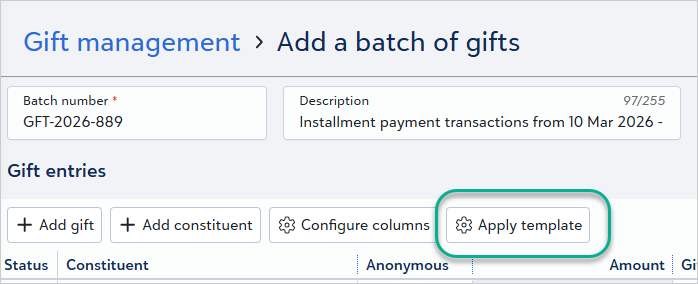
From the grid view, select Apply template to apply an existing batch template to quickly set up your batch, maintain consistency, and reduce data entry errors. Batch templates define which fields appear in the grid and can include default values for those fields. When you apply a template to a new or existing batch, the selected fields and default values are added automatically.
Enter gifts through new checkout
March 10, 2026
Now when you add a gift from Home or a constituent's record, back‑office gift entry uses the same checkout experience as online forms. The new checkout experience provides a modern, secure way to process payments.
Note: Update March 30, 2026: We recommend requiring the card security code (CSC) for all new credit card payments to strengthen security and safeguard your transactions. Based on your feedback, we’ve temporarily reverted back-office functionality to the original checkout for card processing. The new checkout will return in 2027, giving you time to prepare and adjust your back-office procedures. We will provide more information and an updated timeline soon.
General ledger distributions available in web view
March 3, 2026
You can now configure general ledger distributions directly on Funds records in web view for both Blackbaud Financial Edge NXT integrated and non-integrated environments.
Apply manual payments to a pledge
March 3, 2026
You can now apply manual payments to automated pledges. This enhancement lets your organisation accept manual payments for open instalments and update pledge schedules with more control.
Update credit card information on automated pledges in web view
March 3, 2026
To more easily manage payment information, now you can update credit card details for automated pledges.
Latest updates to the grid batch
March 3, 2026
As promised, we’ve made the following updates to the grid batch:
-
You can now create a constituent directly from the grid with the new Add Constituent button.
-
For more accurate gift review, split gifts display the selected campaign, fund, and appeal names instead of Split in the Campaign, Funds, and Appeals columns.
-
For faster data entry, the Campaign, Funds, and Appeals columns now begin searching for results after you enter two characters instead of three.
Grid view batch for improved data entry
March 3, 2026
The new grid batch offers an improved workflow for adding multiple gifts to a batch, while maintaining all the functionality of the previous batch UI. From Gifts, Overview, select Add, New grid batch, or on an existing unapproved batch's record, select Edit, Edit in grid view. Now you can see and review all batch gifts in a single grid, tab through fields for faster entry, and configure the columns to add, remove, or rearrange fields on the batch. The status column is locked to allow you to easily identify and review errors that occurred when saving gifts. For more information, see Add or Edit Gifts in Grid Batch.
Updated batch fields include the constituent field, which now has an advanced search that provides additional constituent details to ensure that you're selecting the correct constituent. After you enter a constituent, select the constituent icon that to open and edit the constituent record from the flyout without having to leave the grid batch.
Under Related Links, you can access the new template functionality, which allows you to set the columns and default values for the fields on your batches. You can reuse the templates for each batch you create, allowing for a quicker workflow. For more information, see Create a Gift Batch Template.
Note: The approval process for batches is not changing. Any existing unapproved batches in your system are unaffected by the update.
Enhanced Gift List: Next Instalment Date for Pledge Insights
January 27, 2026
The Gift list now includes a new Next installment date filter and column that enables more precise segmentation of pledges based on the due date of the next instalment with an outstanding balance. This enhancement helps you quickly identify donors with upcoming or overdue payments, improving follow‑up and stewardship workflows. Because this date reflects the next unpaid instalment, it may appear in the past when a pledge is overdue. In addition, Blackbaud AI Chat now supports questions related to the next instalment date for pledges, making it easier to surface this information without navigating the interface.
Ask Blackbaud AI: Who has pledges due this month from my portfolio?
Integration
Duplicate management of constituents in Luminate Online integration
April 21, 2026
Merges performed in Raiser’s Edge NXT web view now also merge linked Luminate Online constituent records, keeping data aligned across both systems without requiring a database view merge.
Apply consistent data processing rules with integration options
March 17, 2026
You can now manage options directly in web view for Luminate Online integration. This update lets you configure default automatic processing, address information, constituent codes, and record‑matching behaviour, including duplicate‑matching criteria, so the integration works the way your organisation needs it. This does not need any action on your part. For more information, see Options.
General ledger distributions available in web view
February 10, 2026
You can now configure general ledger distributions directly on Funds records in web view for both Blackbaud Financial Edge NXT integrated and non-integrated environments.
Enhanced Luminate Online integration available in web view
January 7, 2026
You can now manage several aspects of your Raiser's Edge and Luminate Online integration directly within Raiser's Edge NXT. While work continues on expanding web view integration, this update introduces a connection between Raiser's Edge NXT and Luminate Online, along with options for working with constituent and gift data.
Supervisor users with access to the database plugin will see the new top-level menu item labelled Luminate Online in web view. The database view plugin remains unchanged, but the web view version offers a convenient experience for completing integration tasks.
For more information, see Raiser's Edge NXT and Luminate Online.
Lists
Update list criteria without starting over
September 08, 2026
Keep a constituent or gift list up to date without rebuilding it. If you have rights to edit query filters, you can now add, replace, or edit its query filter — including its criteria — directly from the list.
Note: If a list is shared, saving a change to its query filter updates the list for everyone who opens it, not just for you.
Membership
Manage membership records without leaving web view
March 31, 2026
Create, edit and delete all membership information directly from the Membership record in Raiser’s Edge NXT web view. All tiles (Credited to, Members and cards, Gift of membership, Benefits, Custom fields, and Linked gifts) support these actions. If your organisation uses Memberships, these updates appear automatically with no setup required.
Manage memberships and gifts together in web view
February 10, 2026
To help you manage memberships and gifts together, you can now link memberships directly to gifts from the gift record in web view. Use the new Memberships tile to view linked memberships, add new ones, or edit existing links without leaving the gift record.
For more information, see Gift Records.
Enhanced visibility into Membership details
February 10, 2026
You can now view all your membership information in one place. We've added six new tiles to Membership details — Credited to, Members and card details, Gift of membership, Benefits, Custom fields, and Linked gifts.
The Custom fields tile supports view, add, edit, and delete, while the other tiles are currently view‑only. If your organisation uses Memberships, these tiles appear automatically with no setup required. Additional add, edit, and delete functionality for tiles will be released in future updates. For additional information, see Membership Records.
Online Engagement
Automatically keep designation search current
October 13, 2026
Reduce maintenance for the designation search website component. When you rename a designation or change its status, the designation search automatically reflects those updates. Supporters see the most current designation names, and inactive options no longer appear in search results. You no longer need to manually update the component to keep the search current.
Collect titles and suffixes on Online Giving forms
September 8, 2026
Now, you can collect supporter titles and suffixes on Standard Donation Forms, constituent forms, and membership forms. You choose which titles and suffixes are available in Form settings, then add them to forms, customise field labels, and make them required when needed. Supporters see the selected options, and their submitted values are saved to their constituent records. You can also add title and suffix information in a form's thank-you emails, helping you create more personal communications.
Let donors write in their own designation
September 1, 2026
Donors who want to support a designation that is not listed on a donation form no longer need to leave the form or choose an alternative designation. Enable Donors can add their own designations on a Standard or Optimised Donation Form to to capture donor intent more accurately. With this option, you can:
-
Configure a default write-in designation and custom gift field in Settings to support donor-provided designations.
-
Allow donors to enter the designation they want to support in a Standard Donation Form or Optimised Donation Form, with up to 255 characters of text.
-
Show the donor's written-in designation in the thank you email, reinforcing that their gift intent was captured.
Grow your membership programme with membership forms
August 25, 2026
Now, you can accept memberships and grow your membership programme with forms that automatically create or update membership records when supporters complete a purchase. Depending on how you configure the form, supporters can:
• Purchase memberships for themselves
• Purchase family memberships
• Purchase a gift membership for someone else
• Give a donation in addition to their membership purchase
• Cover processing fees
You can also schedule a form to close on a specific date, display a custom closing message, and review potential duplicate memberships in Online Data Review.
Streamlined Online Giving permissions
August 18, 2026
Permissions for donation forms and website components are now available under Online Giving in Security roles. This provides a consistent path that matches product navigation when you manage access to these areas. Admins who already have access through Tools keep their existing permissions without changes.
Note: Permissions are additive. If admins receive the same permission from multiple locations, removing it from one location does not remove their access. To fully remove access, remove the permission from every location where it is assigned.
Pre-fill gift amounts with URL parameters
August 11, 2026
To create a more personal experience and help donors get started with a suggested giving amount, you can now pass gift amounts directly through a donation form or webpage URL. To use a gift amount parameter, configure the applicable gift type on the donation form. Supported gift types include one-time gifts, recurring gifts, and pledge amounts. To make URL creation easier, use the link builder to generate the correct parameters automatically.
Opportunities
Qualify opportunities faster with Reason, Instrument, Likelihood, Date rated, and Org contact
August 25, 2026
Two tiles on the opportunity record now carry more detail.
The Details tile displays Reason and Source, alongside Campaign, Fund, and Gift type. The Status tile displays Likelihood and the date the opportunity was last rated.
For opportunities linked to an organisation constituent, the record also displays an Org contact — the individual designated as your primary contact at that organisation. Select the contact's name to go to their constituent record.
Follow funding progress from original ask to received
August 25, 2026
Two changes to the Funding tile give you a fuller view of an opportunity, from the first ask through to the gifts you receive.
The tile shows the Original ask amount and date. When you first save an opportunity, the original ask takes the current Ask amount and date. If you later update the ask, the original ask amount and date don't change, so you always have a record of what you initially asked for. To correct them, select More, Edit original ask amount on the opportunity record.
Note: After an opportunity has a funded amount, select See more on the Funding tile to view the original ask amount.
New Committed amount and Received amount values break down funding progress, calculated from the gifts linked to the opportunity based on your organisation's Giving analysis settings. These amounts are for reference only — the existing Funded amount doesn't change. Select either amount to see the gifts included in it.
Link recurring gift payments to an opportunity
August 25, 2026
Link a recurring gift's individual payments to an opportunity instead of the gift as a whole, so Funded reflects the gifts actually received. Recurring gifts already linked to an opportunity aren't affected by this change, and you can still remove or edit those existing links.
Add, edit, and delete notes on an opportunity
August 25, 2026
The new Notes tile on an opportunity record lets you add, edit, and delete notes at any point. Notes hold extra context that doesn't fit elsewhere, separate from the record's summary note.
Enter more detail when you add or edit an opportunity
August 25, 2026
The add and edit experience for opportunities has a modernised design, and it now captures Reason, Source, Date rated, and Notes alongside the details you already track. For an organisation constituent, Contact lets you select the organisation's contact for that opportunity from its existing relationships.
When you add a new opportunity, you can also save your organisation's custom fields — Category, Description, Short description, Date, and Comments — without opening the record afterward. For more information, see Add or Edit Opportunities.
Note: Custom fields are available only when you add a new opportunity.
Delete an opportunity from web view
August 25, 2026
You can now delete an opportunity from web view. From the opportunity record, select Delete. Or select Delete for an opportunity directly from a constituent's Opportunities tile. Confirm the deletion when prompted — deleting an opportunity also removes its custom fields, attachments, actions, notes, and linked gift associations.
Note: You need the appropriate permission to delete opportunities.
Track opportunities by lifecycle stage
August 25, 2026
Opportunity status configuration has moved from the Opportunities tile to Settings, Records, Opportunity status. From there, map each opportunity status to a lifecycle stage — Identification, Qualification, Cultivation, Solicitation, Negotiation, Stewardship, or Completed — along with whether it counts as open or closed and how many days it can remain in that status before it's overdue. Select Review to see a read-only board of your mapped statuses grouped by lifecycle stage.
After you map statuses, the Status tile on an opportunity record shows its Lifecycle stage, so you can see which stage each opportunity has reached.
Note: If a status isn't mapped to a lifecycle stage yet, the tile displays Not mapped. If you have permission to manage opportunity status settings, select Manage lifecycle setting to open the mapping.
Portal
Enhanced portal experience for better engagement
March 24, 2026
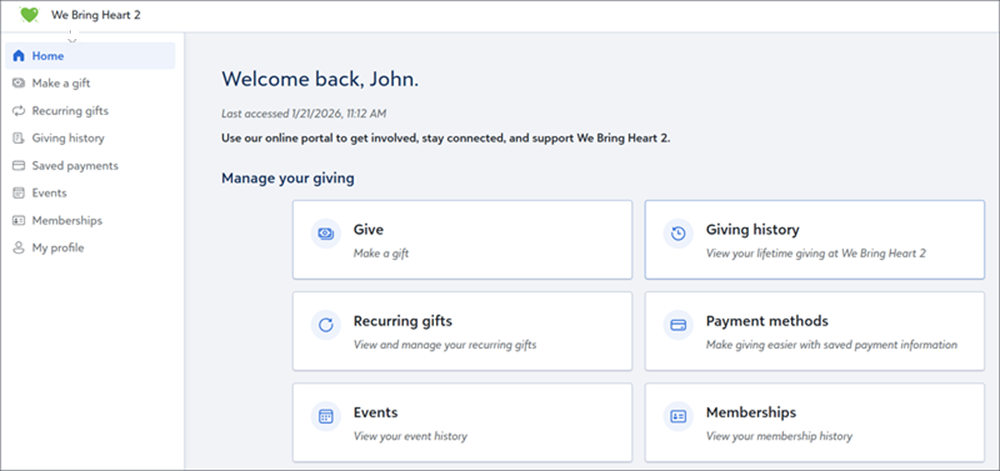
To help your organisation increase constituent engagement, streamline giving, and save time, portal users can now:
-
View memberships and events - Portal users can easily view their memberships and past and future events keeping them informed and engaged.
-
Give through an Optimised Donation Form – Admins can select an Optimised Donation Form for portal giving. This provides portal users with a streamlined, user-friendly experience.
-
PCI v4-compliant saved payments - Portal users can save their payments with a checkout that is dynamic, secure, and with no scheduled payments downtime.
-
Recognize your brand – The portal displays your organisation’s name and logo together to reinforce brand identity and create a personalised experience.
-
Improved navigation – A redesigned left navigation makes it easier for portal users to find what they need, improving usability and overall satisfaction.
To learn how to set up and configure your organisation's portal experience, see Portal.
Premium Features
Tip: What's a premium feature?
Classify donors with donor levels in Settings
September 15, 2026
Classify donors by giving level directly from Settings. The new Donor levels option under Donor analysis gives you six ready-to-use donor levels — Annual, Leadership, Mid level, Major, Principal, and Transformational — that you can reorder, adjust, deactivate, and reactivate to match how your organisation segments donors. For more information, see Donor Analysis Settings.
Prospect Insights
Identify opportunities below a constituent's giving capacity
Identify opportunities with an Ask amount below a constituent's predicted giving capacity, and use optimisation checks to refine your solicitation before the ask is made.
See the latest status when you open an opportunity from Prospect Insights
When you select an opportunity in Prospect Insights, the record now opens in a flyout, so you can check its current optimisation status without leaving Prospect Insights — even if a recent update hasn't yet appeared there. Opening the flyout respects your existing permissions.
Accept a recommendation when you add an opportunity
The Accept recommendations is now available when you add a new opportunity, not just when you edit one. Select it to fill Ask amount, Expected amount, and Deadline with the recommended values. These fields no longer fill in on their own.
See a constituent's active opportunities before you add a new one
When you add a new opportunity, the recommendation now lists the constituent's active opportunities, so you can see what other asks are already open before you create another one. Up to three opportunities display, with the option to view the rest.
Query
Import ID and System Record ID added for query record types
August 11, 2026
You can now include Import ID and System Record ID in query results, which makes it easier to validate imported data, troubleshoot record issues, and match records across systems without opening other areas of Raiser's Edge NXT.
In web view, Import ID is available for applicable record types. Some Import ID fields are available only in web view queries.
System Record ID is available across fields and node locations in both single-row and multi-row query results. This provides a consistent way to identify records across query layouts and record locations. For example, you can include System Record ID in a query result to reference a unique identifier in another system. As with Import ID fields, some System Record ID fields are available only in web view queries.
Identify soft credits and matching gifts in query results
August 11, 2026
Add the Soft Credit/Matching Gift Flag field to Gift queries to identify how each result row relates to a soft credit or matching gift. When soft credit or matching gift processing options return multiple rows for the same gift, the flag identifies the purpose of each row, such as a matching gift company's pledge, a donor's matching gift payment, or a soft credit recipient.
Use the flag to interpret query results more easily when a single gift generates multiple records. It helps you validate query output, investigate unexpected results, and identify why each related record appears in query results.
Your existing queries continue to work without changes. Add the field with your soft credit and matching gift processing options to quickly distinguish related records and better understand how gifts are represented in query results.
Updated Honour/Memorial Name fields in Query
July 14, 2026
Queries that include tribute name information now offer two distinct name format options. The Honour/Memorial Sort Name field, which was previously labelled Honour/Memorial Name, continues to display names in Last, First Middle format. A new Honour/Memorial Name field displays names in First MI Last format, so you can run mail merges and generate correspondence without reformatting name data outside of Raiser's Edge NXT.
If you renamed Honour/Memorial Name in a query's output columns, that custom name remains unchanged.
Build more complete query exports
July 14, 2026
You can now include additional commonly used Export fields when building queries in web view, such as full addresses, campaign lists, and fundraiser lists, which improves readability and streamlines downstream reporting.
Use these web view-only query fields in criteria, output, and sorting across both single-row and multi-row layouts to create more complete exports for reporting and analysis.
-
Sort Name With Import ID
-
Address
-
Organisation Name
-
Position
-
Country Long Description
-
Country Short Description
-
Preferred Address
-
Fundraiser List
-
Fund List
-
Payment Transaction ID
-
Appeal List
-
Campaign List
Resizable Query editor panes
March 10, 2026
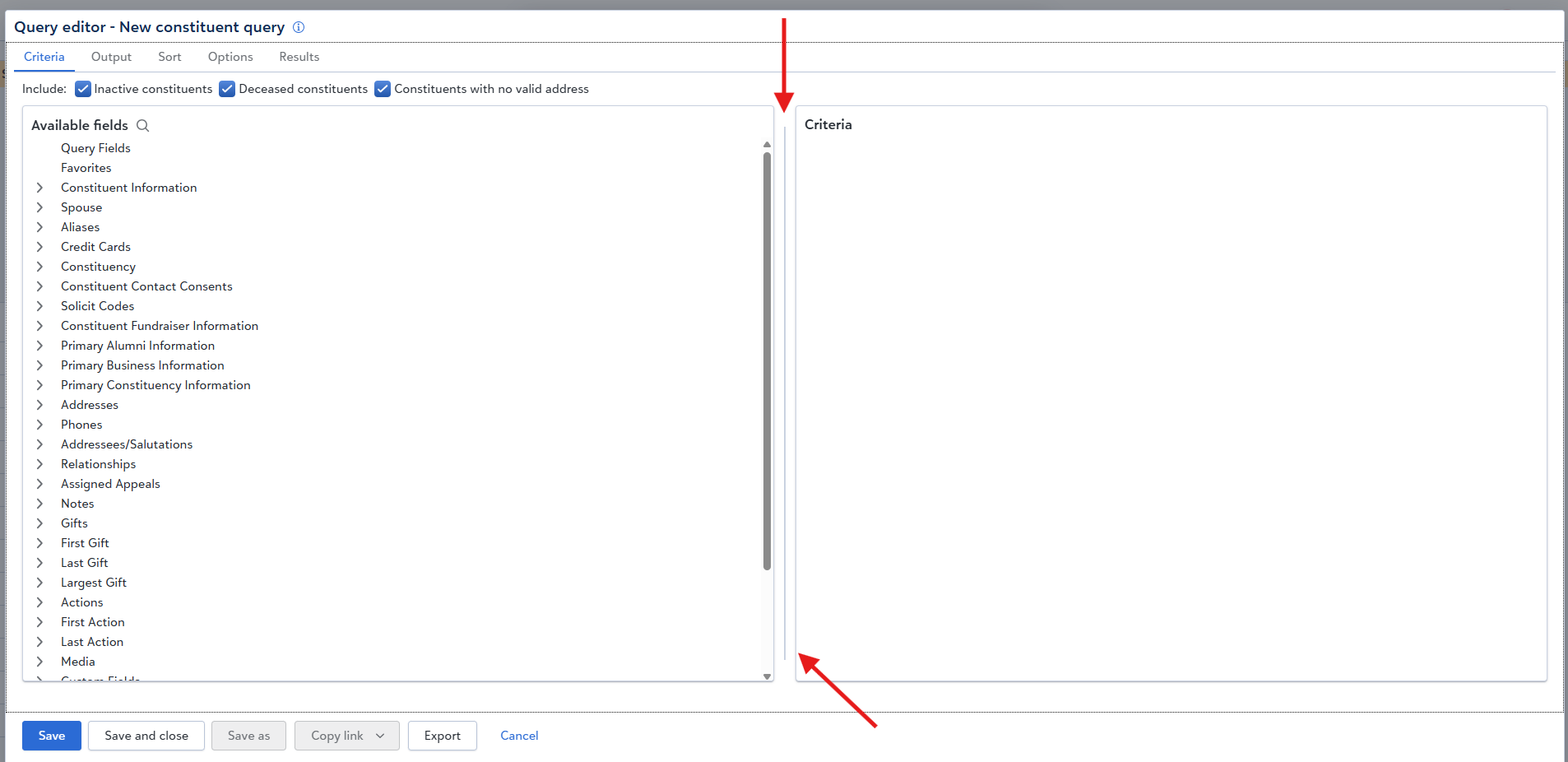
You can now resise the Query editor panes to create a workspace that supports your workflow. A new grab handle appears between the panes so you can adjust the width to focus on the criteria, output, or sort information you need. You can also resise the panes with the keyboard, which supports users who prefer or require keyboard navigation.
When you adjust the pane widths, SKY UX sticky settings store your preferences for each product and each editor view. For example, Criteria, Output, and Sort store their pane widths independently. Your preferred layout appears each time you open an editor so you can stay focused on your task without reorganising your workspace.
Updated constituent name formatting to First MI Last
March 10, 2026
We updated how queries format Name to align it more closely with natural language and to distinguish it from Sort Name. Sort Name uses the Last, First Middle format; Name and Sort Name had displayed the same information. To support multiple formats in web view Query, Name now displays First MI Last. Sort Name continues to display Last, First Middle.
How this update affects workflows
-
Use Sort Name when you need Last, First Middle for sorting or grouping.
-
Use Name when you need First MI Last for display or export.
-
Include both fields in a query when you need both formats available for review.
This update ensures that both formats are available in web view Query. Teams that prefer First MI Last can use Name, and teams that rely on Last, First Middle can use Sort Name.
Note: Queries that currently include Name may need to switch to Sort Name if the user wants to use Last, First Middle.
Enhanced visibility and expanded field options in web view Query
March 3, 2026
To make it easy to see which fields aren’t available in database view, web view queries now display a cloud icon for fields that are exclusive to web view. This visibility helps you confidently build queries that use web view–only data and benefit from additional insights you couldn’t access before.

We've added new fields from database view Export to web view Query:
-
Constituent, Sort name with import ID
-
Gift, Fund list
-
Preferred Address, Preferred Address
-
Address processing, Address
These address fields include all address lines in the same cell.
To support consistent terminology in Query, we’ve renamed the Sort key fields where needed:
-
Sort name lists Last name, First nameMiddle name
-
Sort name with import ID lists Last name, First name, Middle name, Import ID
Receipts
Customise Giving Statements
May 12, 2026
Now you can customise your giving statements with your organisation's logo, signature image, signatory name, and signatory title. From Gifts, Giving statements, select the Settings gear icon, then PDF.
Enter a custom logo, signature image, signatory name, and signatory title to match your organisation's branding.
Settings
Configure prospect statuses from the new Settings area
Prospect status configuration has moved from the Prospect management tile to Settings, Records, Prospect status. Setup steps haven't changed — only where you find them. For more information, see Configure Prospect Statuses.
Changes to existing intelligent tags
August 4, 2026
We’re retiring three tags that were based only on a single wealth‑related indicator: High wealth rating, Higher giving potential, and Recent wealth data.
Note: These three tags will stop updating on September 8, 2026, and no longer appear on constituent records, lists, or Work Centre. If a list filters on one of these tags, that list keeps returning the same results. You can’t add a retired tag as a new filter, and you can’t add one back after you remove it from a list.
We’re also updating New donor and New sustainer to recognise soft credits along with direct gifts, matching how other lifecycle tags, such as At risk donor and Lapsed donor, work. For details on every standard tag, see Standard Tag Definitions.
Act on an intelligent tag without leaving the record
August 4, 2026
Select a standard or custom tag to open a popover that explains what the tag means and quickly create a follow-up action.
From the popover, select Add action to create a follow‑up that's pre‑filled with the tag’s context, including the recommended next step and category. For standard tags, relevant details from the constituent’s record, such as pledge or gift information, are added to the action’s note, so they’re ready when you reach out. You can review, personalise, and save the action.
One way to try this: filter a constituent list or Work Centre view to a single tag, such as Upcoming pledge instalment, then select the tag and use Add action to create the follow‑up. For a complete walkthrough, see Use Intelligent Tags to Move from Signal to Follow-Up.
Manage standard tags with the same tools as custom tags
August 4, 2026
The standard tags list now matches the at‑a‑glance view custom tags use. For each standard tag, you can see:
-
Description
-
Recommended guidance
-
Visibility
-
Constituent count
Use Find in this list or Columns to focus on what matters to your team.
Management options differ between the two tag types, because standard tags come from Raiser's Edge NXT with fixed criteria, while custom tags are fully defined by your organisation. For a standard tag, select Manage to set its visibility to All users or Specific users. For a custom tag, select Edit to update its name, description, data source, recommendation, priority, and visibility. Custom tags also support Copy and Delete. Standard tags don’t, because Raiser's Edge NXT defines and maintains them.
Keep fundraisers focused on the standard tags that matter to their role
August 4, 2026
Admins can now limit a standard tag to specific users, the same visibility control custom tags use. Hiding a tag from a user’s view doesn’t remove underlying data — it only limits who sees it. Use this to keep every user focused on the signals that matter most to their role.
To change a tag’s visibility, go to Settings, Intelligent tags, and select Manage next to a standard tag.
Note: If you limit a standard tag to specific users, include yourself in that list to keep your own visibility into the tag.
New standard tags help you spot more fundraising moments automatically
August 4, 2026
New standard intelligent tags flag more fundraising moments automatically across the donor lifecycle:
-
Consecutive giving streak
-
Emerging prospect
-
Giving anniversary approaching
-
Prospect assigned but no opportunity
-
Qualified prospect
-
Recent soft credit
-
Recurring gift payment failing
-
Reunion year (with Alumni Tracking only)
-
Secondary prospect
-
Top prospect
-
Undergiving prospect
-
Untapped prospect
-
Upcoming pledge instalment
Note: Prospect Insights intelligent tags may not be available immediately after release and will appear gradually over the next week as processing completes.
These tags appear on constituent records, in lists, and in Work Centre, and require no setup. For details on when each tag applies, see Standard Tag Definitions.
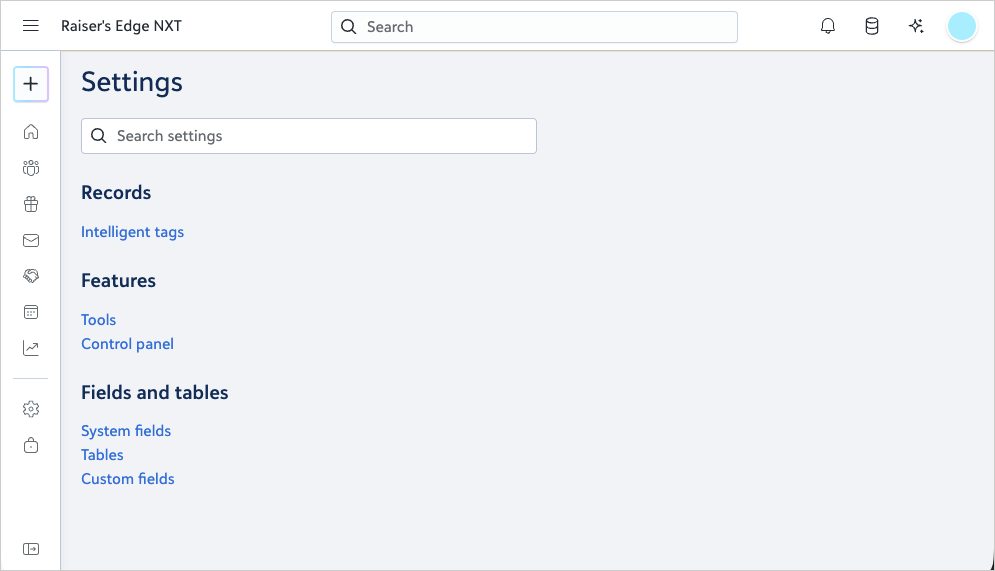
Settings navigation is simpler — and easier to search
March 10, 2026
We’ve simplified the Settings experience so you can spend less time navigating and more time getting things done. Instead of opening a dropdown and knowing which page to choose, selecting Settings in the left navigation now takes you straight to the main Settings page. Once you’re there, a new built‑in search helps you find the setting you want to update.
This update is designed to make Settings more intuitive, more flexible, and more future‑ready. Previously, Settings were spread across multiple sub‑menus, which meant you had to understand the structure before you could make a change. This release begins a broader consolidation of Settings into a single, easier‑to‑scan destination that’s built to grow. You’ll see more settings move here over time, and new settings will land on this page in future releases, making it the central place to find, manage, and update everything you need.
Shape the donor insights that drive your fundraising with Intelligent tags
March 10, 2026
Intelligent tags — previously known as Tags in Raiser’s Edge NXT — are now managed directly in Settings, giving organisations more control over which donor insights appear throughout their fundraising workflows. These insights highlight key donor behaviours such as recent giving, lapsing activity, event participation, wealth changes, and personal milestones. They appear across the product, including constituent records, lists, Work Centre, and prospect outreach recommendations in Chat for Blackbaud AI.
With this update, admins control which insights appear, so teams are guided by consistent, strategy‑aligned signals that support confident, results‑driven fundraising. By managing intelligent tags and displaying only the ones that matter to your organisation, fundraisers see the most relevant donor insights when they work in Raiser’s Edge NXT.
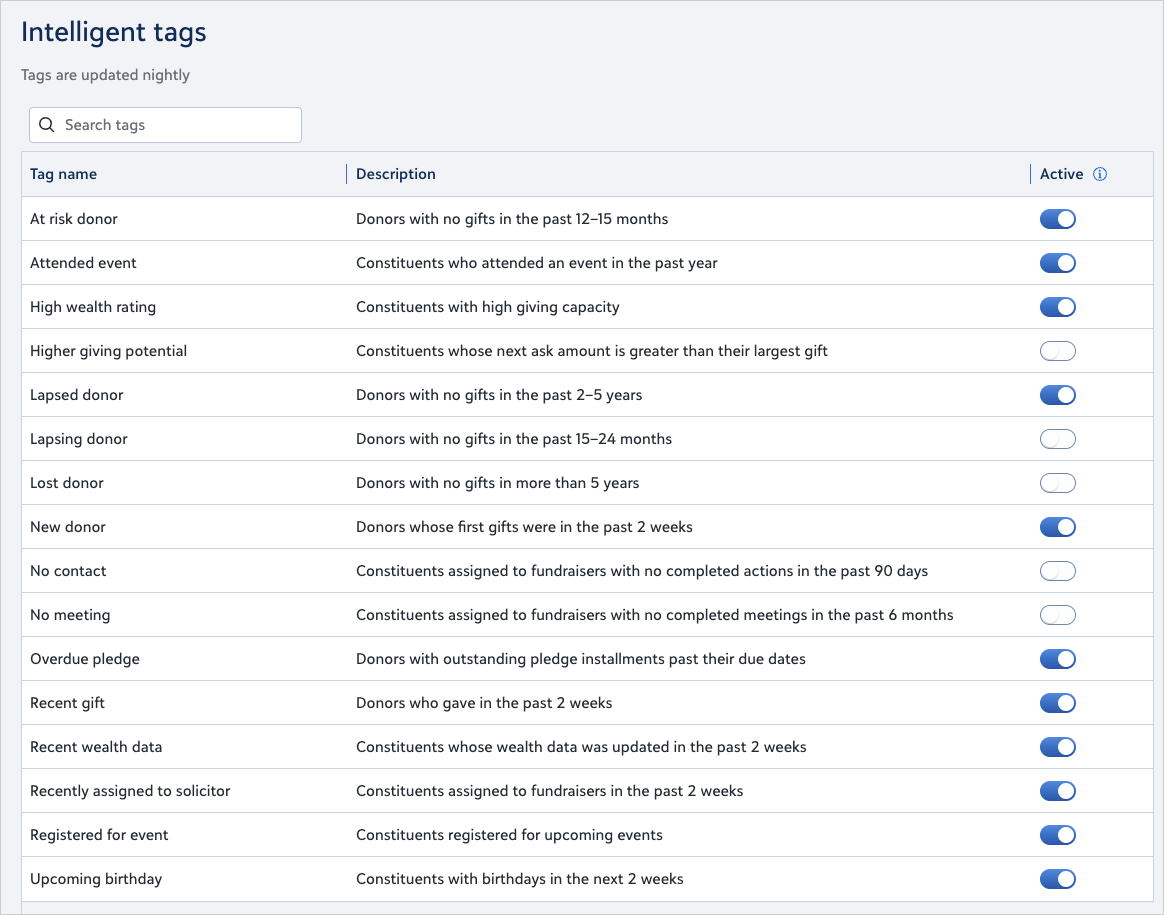
Admins can turn individual intelligent tags on or off in Settings, Intelligent tags. A new Manage intelligent tags permission in Security, Role management, Settings determines who can adjust which insights appear.
This enhancement strengthens organisational governance, improves the relevance of insights fundraisers rely on, and creates a foundation for a more unified settings experience.
Standard Reports
Save time with report preview
September 22, 2026
Preview a standard report anywhere you can run or download one, including while you edit it. Select Preview to validate content, formatting, and filters in a read-only view, so you can catch issues or make edits before you download a file.
Preview saves your results, so you can return to them later without downloading a file. Reopen a preview for a scheduled report that ran overnight, or for a report someone shares with you, to check the numbers before you decide whether to download it.
Preview is available for the reports under Recently run, which keeps results from the last 14 days. If a preview isn't available for a report, run the report again.
Note: Preview times out for long-running reports. To preview the report after it finishes, open Recently run.
Run the Past Due Report in web view
August 11, 2026
You can now run the Past Due Report in web view to see which pledge and recurring gift payments are past due as of a date you choose, grouped by the number of days overdue. As in database view, this report is found under Pledge and Recurring Gift Reports.
Track parent giving trends by alumni class year
To help you understand how parents of alumni contribute by class year, you can now run the Parent Class Analysis Report. Use it to track parent giving trends, measure participation rates, and generate mailing lists from output queries.
As in database view, this report is found under Analytical Reports.
Statistical Reports now available in Raiser's Edge NXT
May 5, 2026
You can now access Statistical Reports in Raiser's Edge NXT to get a single-period snapshot of constituent counts, gift activity, and total giving grouped by key fields like constituency, fund, campaign, or appeal. As in database view, this report is found under Demographic and Statistical Reports and offers a familiar way to summarise giving — similar to Comparisons and Summaries, but focused on a single period rather than multi-period analysis.
Explore alumni giving with a new Standard report
April 7, 2026
You can now analyse alumni giving trends by graduating class, degree programme, and major with the new Alumni Class Analysis report. Use this report to compare class-level performance or review individual gift detail to better understand alumni engagement and fundraising opportunities over time.
For more information, see Standard Reports.
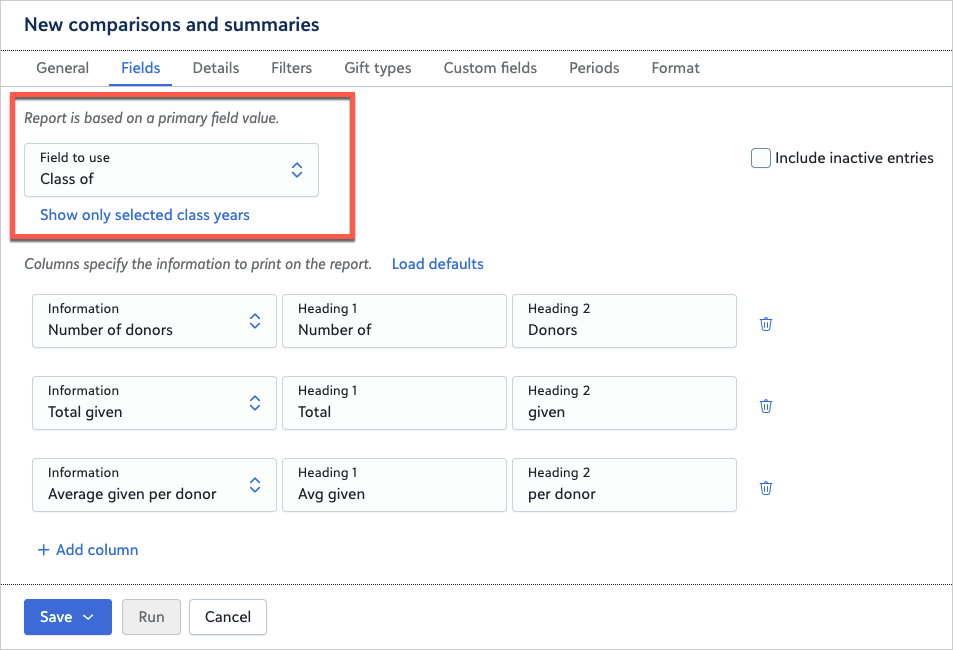
Class of field now available in Comparison and Summaries reports
March 10, 2026
In response to your feedback, Comparison and Summaries reports in Standard reports now support the Class of field, allowing you to run reports broken down by class years. You can apply this field from the Fields tab when building or editing a report. Previously, class year data was only available in database view.
Greater flexibility for constituent name formatting in Standard reports
January 7, 2026
In response to your feedback, we’ve added a new way to customise how constituent names appear in Standard reports. Previously, you could only choose Individual’s name or Individual’s record as the name source. Now, you can select From configuration for even greater flexibility. This enhancement allows you to apply any name format defined in Configuration, Addressees/Salutations in database view. For example, you can include a constituent’s ID in the name format — helping you tailor reports to your organisation’s needs. When you add or edit a Standard report, on the Formats tab, under Constituent, select From configuration and choose a name format from your configuration settings. This update gives you more control over how names display in reports, ensuring consistency and alignment with your organisation’s standards.